Production Tracker
Import suppliers with owned orders can utilize the Production Tracker in Supplier One (previously CPV) to capture key milestone details, including shipment readiness confidence starting 45 days prior to shipment, along with other quality-related fields such as Final Inspection Planned Dates, Sewn Qty Actual, etc.
Users can update milestones either through intuitive digital screens or via Excel batch uploads, provide proactive milestone updates with early collaboration on risks and mitigation. Real-time feedback ensures easy tracking and immediate visibility into which entries classify a Purchase Order as “At Risk” or “High Risk”.
Navigating Production Tracker
Follow the steps below to navigate and customize the Production Tracker page in Supplier One.
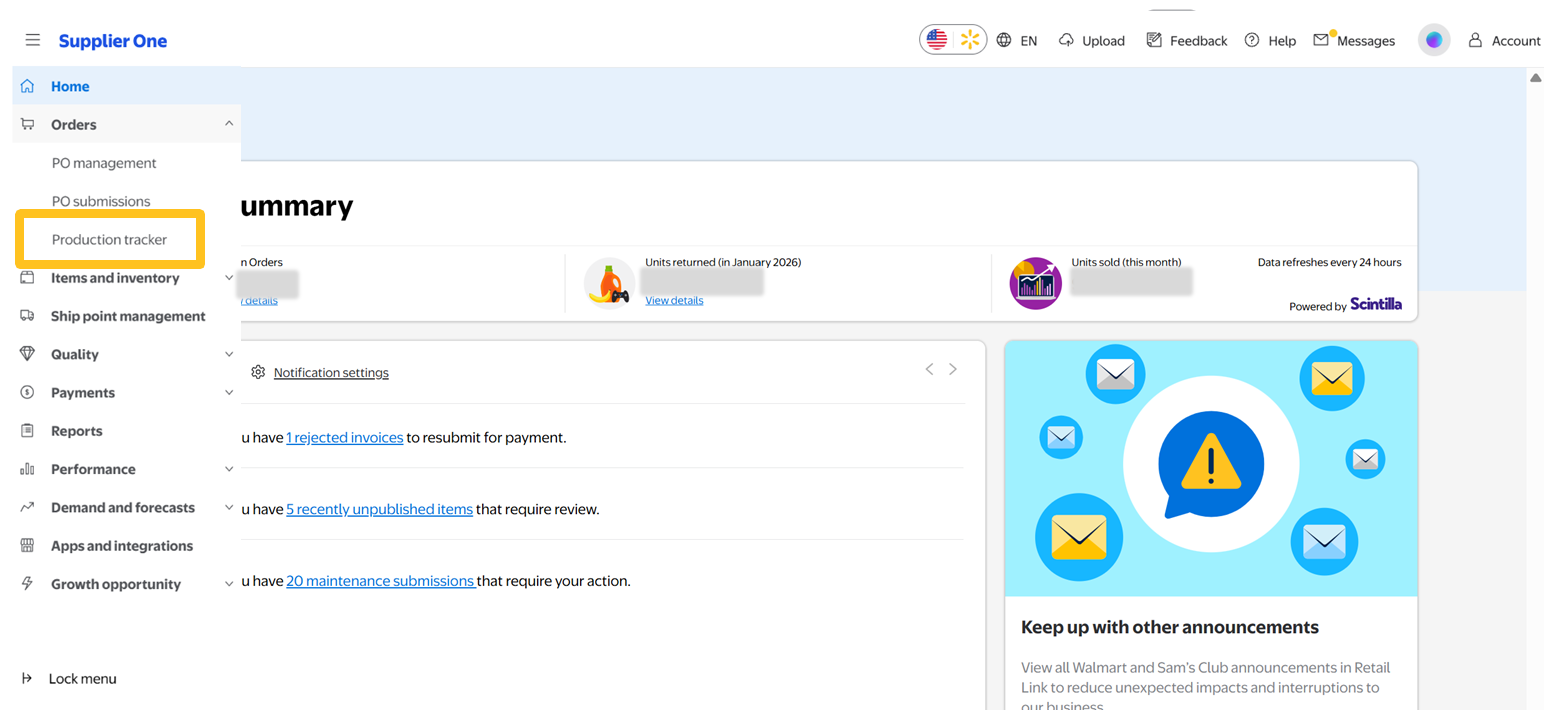
- In the left side navigation menu, select Orders then Production Tracker.
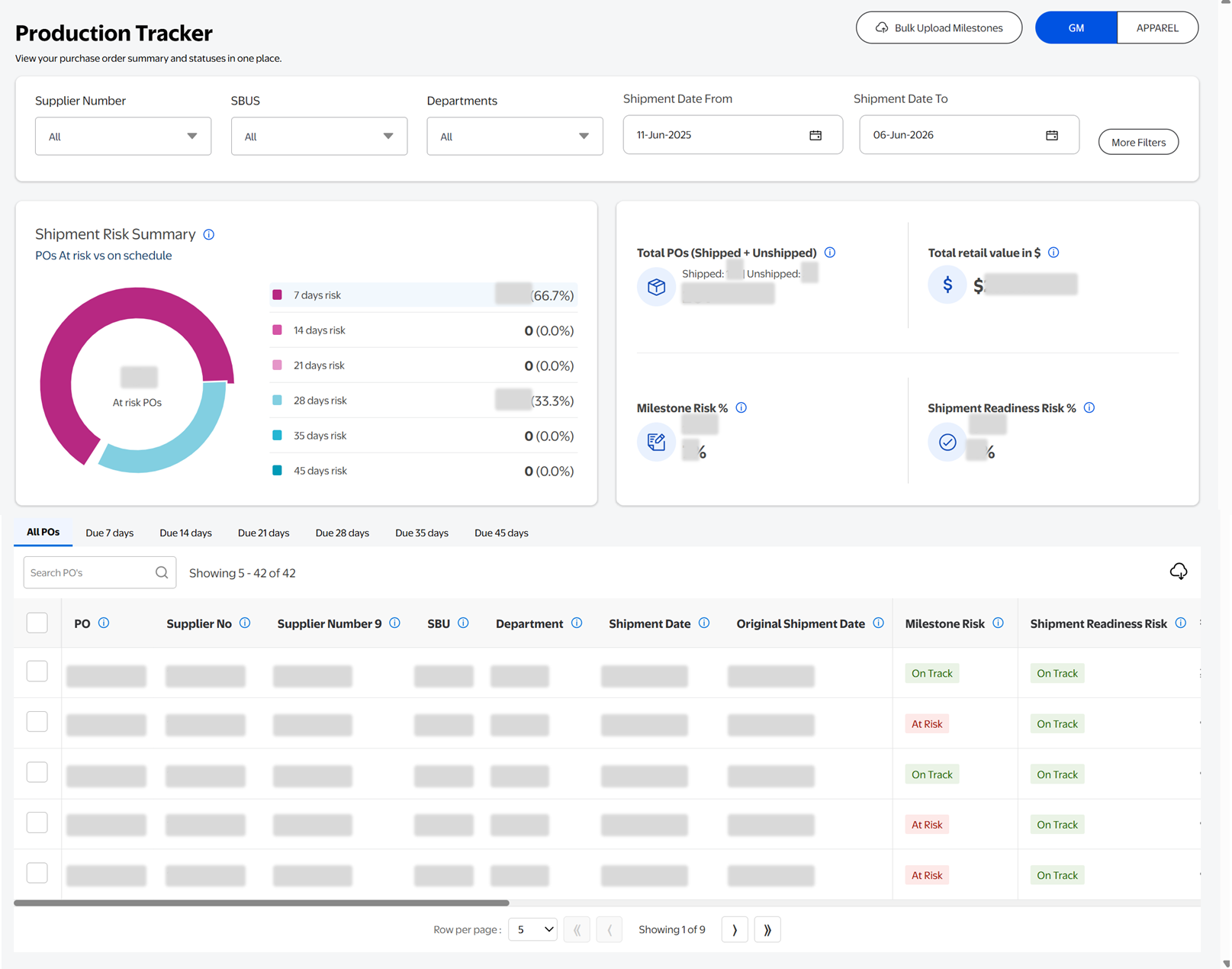
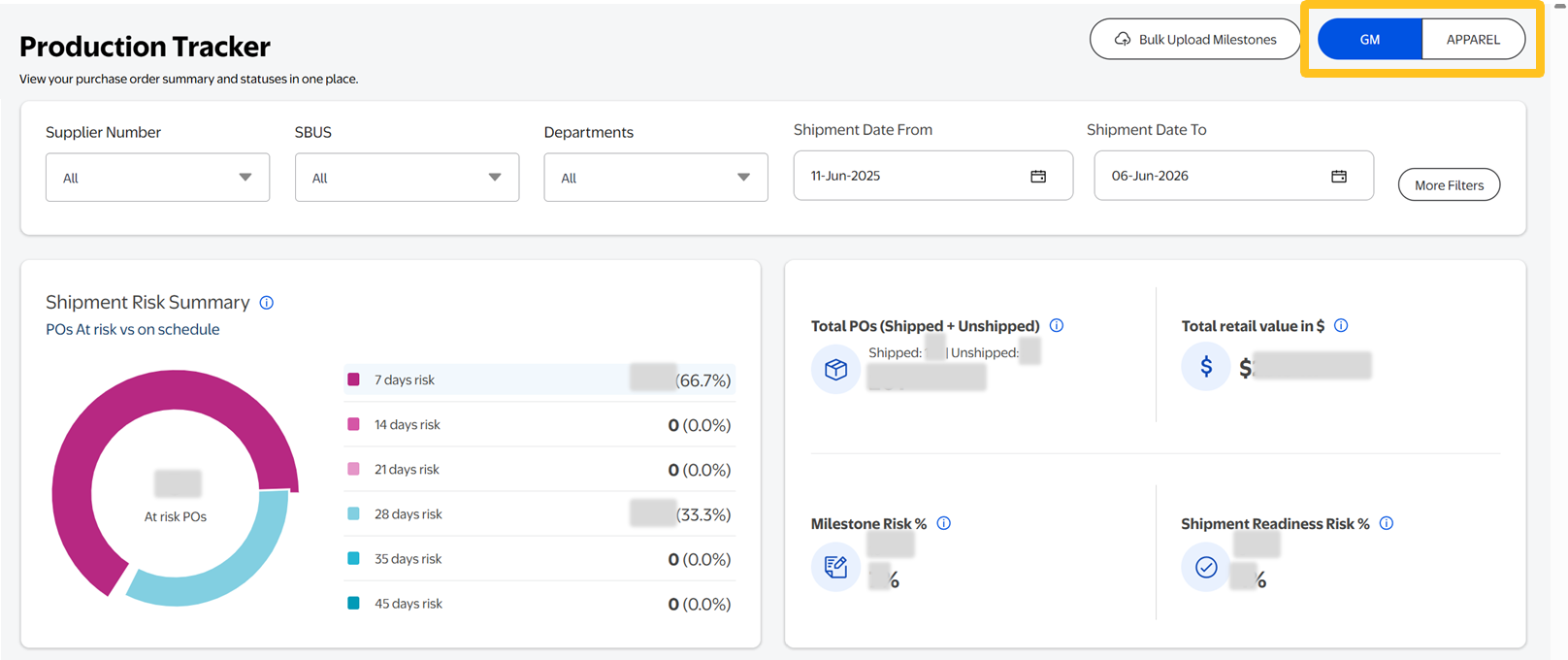
- You can toggle between GM and Apparel to view category-specific fields.
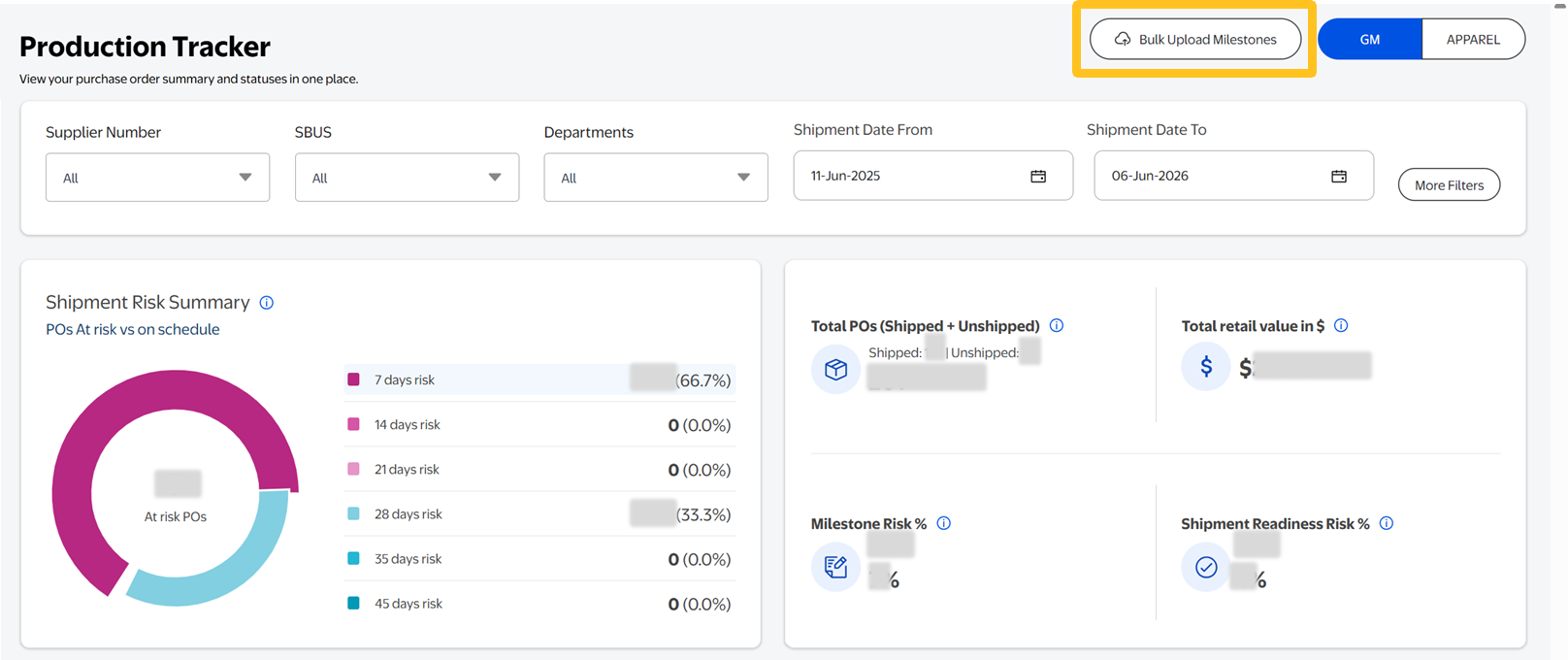
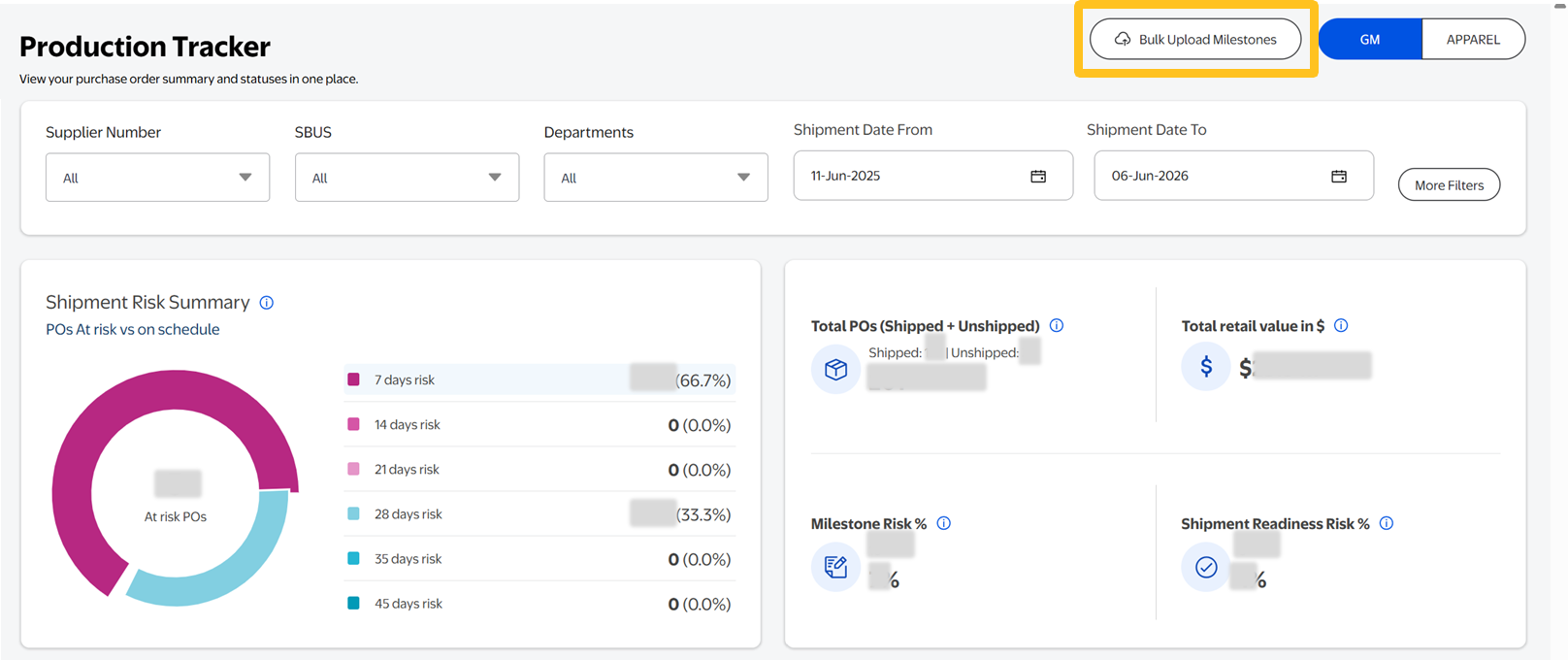
- The Bulk Upload Milestones allows you to upload multiple milestones at once (refer to the section below).
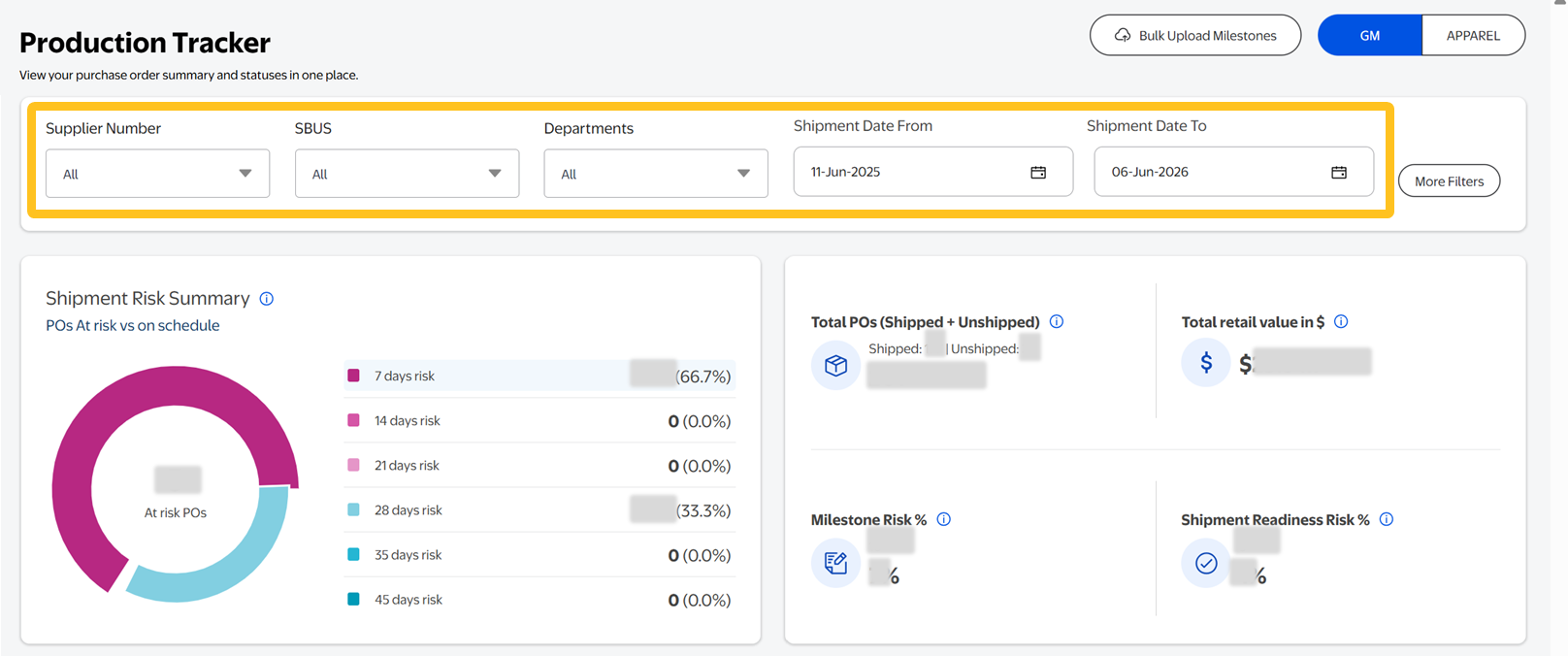
- To customize the data in the dashboard, use the high-level filters to narrow down by Supplier Number, SBU, Department, Shipment Date From and Shipment Date To.
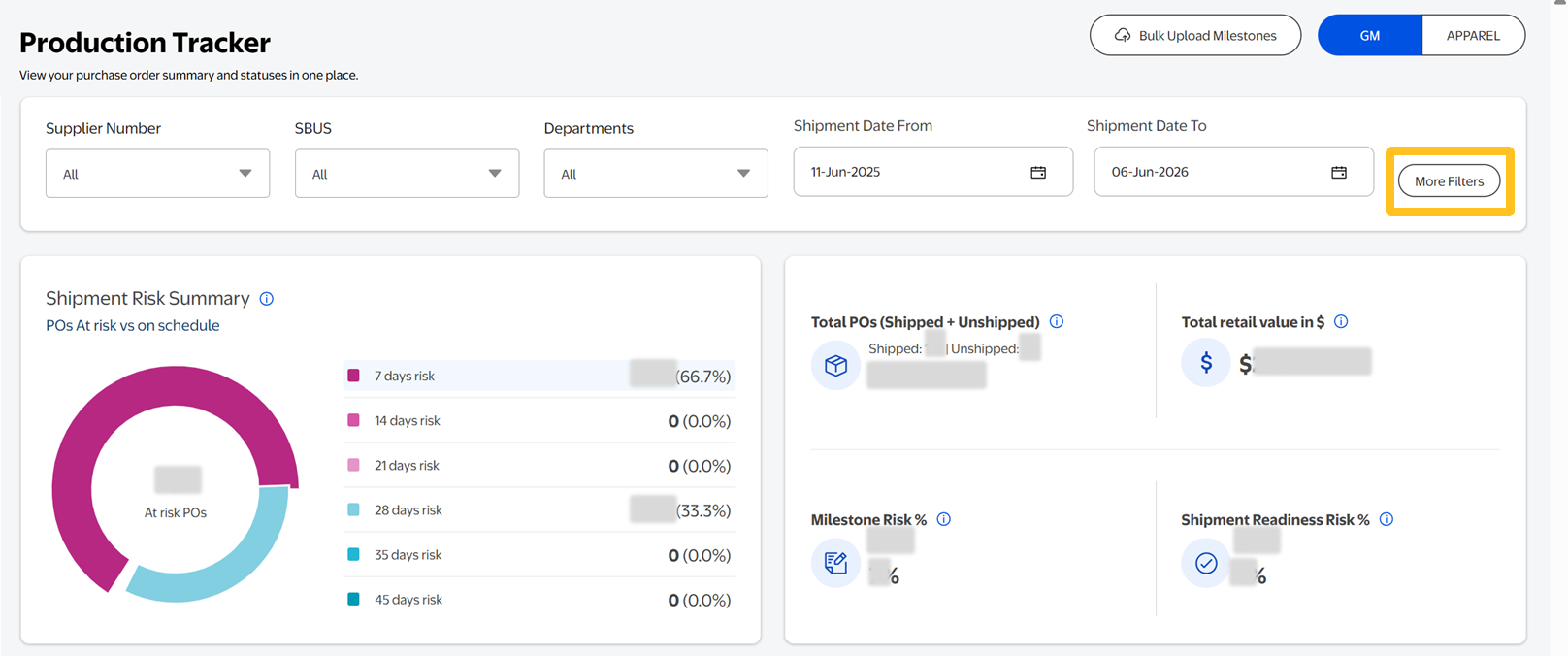
- Click More Filters for additional filter options such as PO Number, Item Number, Factory, PO Type, Event Code, Origin Country, etc.
- Once you've selected additional filters, click Apply.
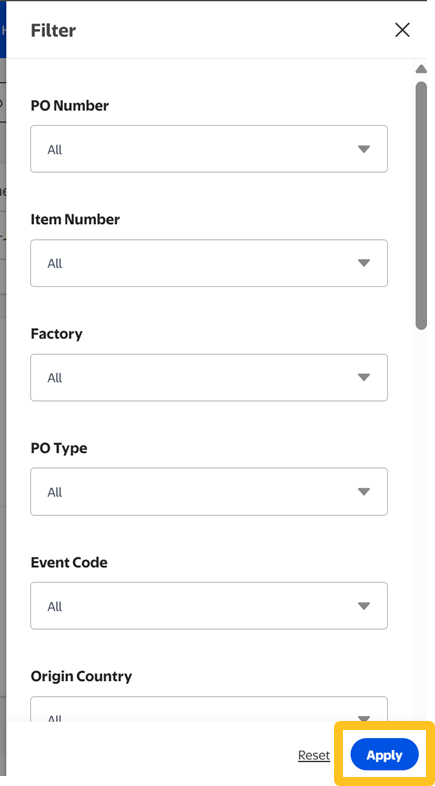
- Once you've selected additional filters, click Apply.
- The Production Milestone Dashboard includes an overall risk summary for all unshipped owned orders and PO shipment timelines.
- Shipment Risk Summary: Overview of shipment risks to allow you to address issues quickly with timely resolution by clicking on the days at risk to jump to the table view of the POs.
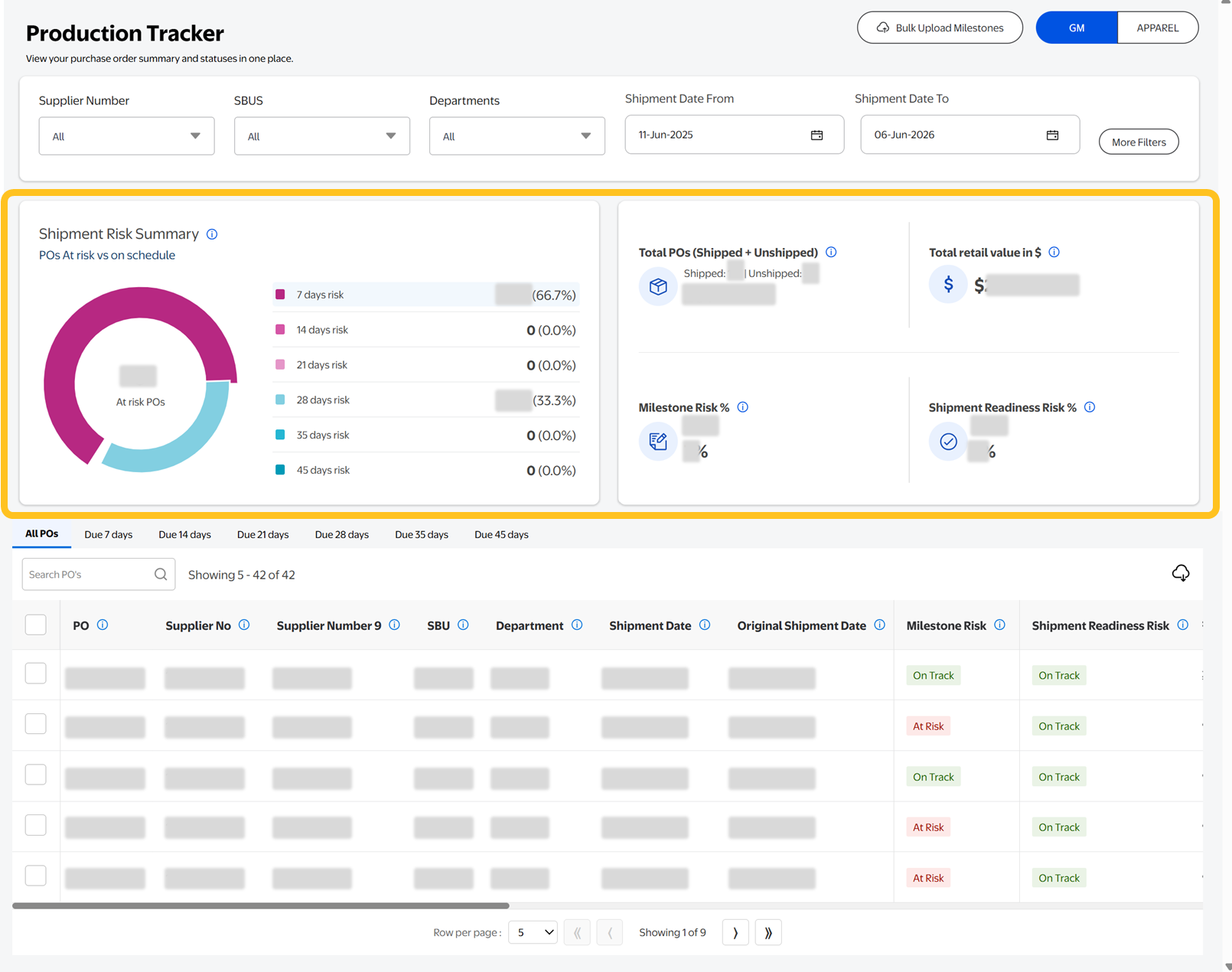
- PO Shipment Timeline tabs: POs are grouped by days remaining until shipment (All POs, Due 7 Days, Due 14 Days, Due 21 Days, Due 28 Days, Due 35 Days, Due 45 Days).Scroll to the right to view detailed attributes for each PO.
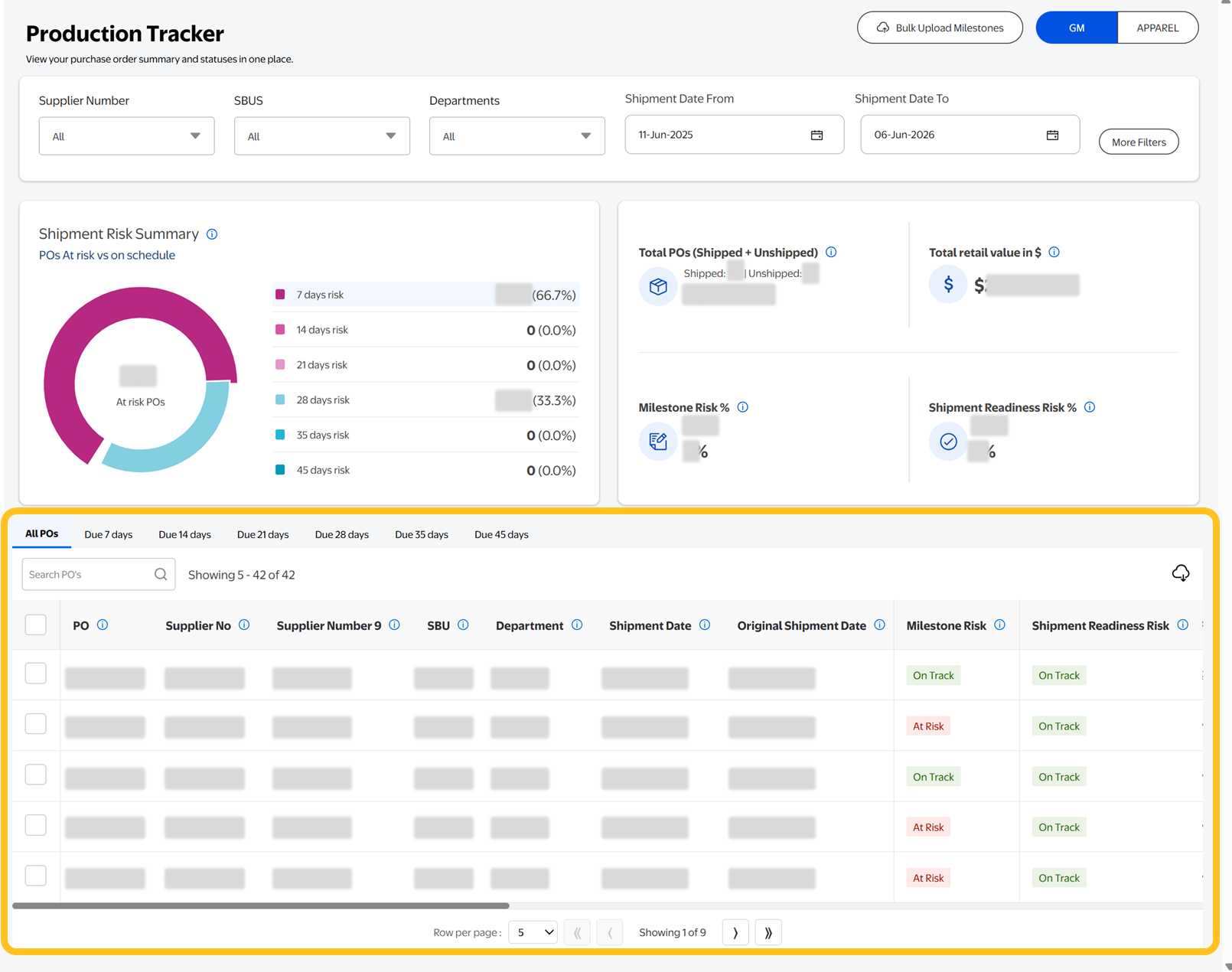
- All POs will include all Unshipped POs.
- Due 7 Days includes POs shipping in the next 7 days.
- Due 14 days includes all POs due in 8-14 days, and so on.
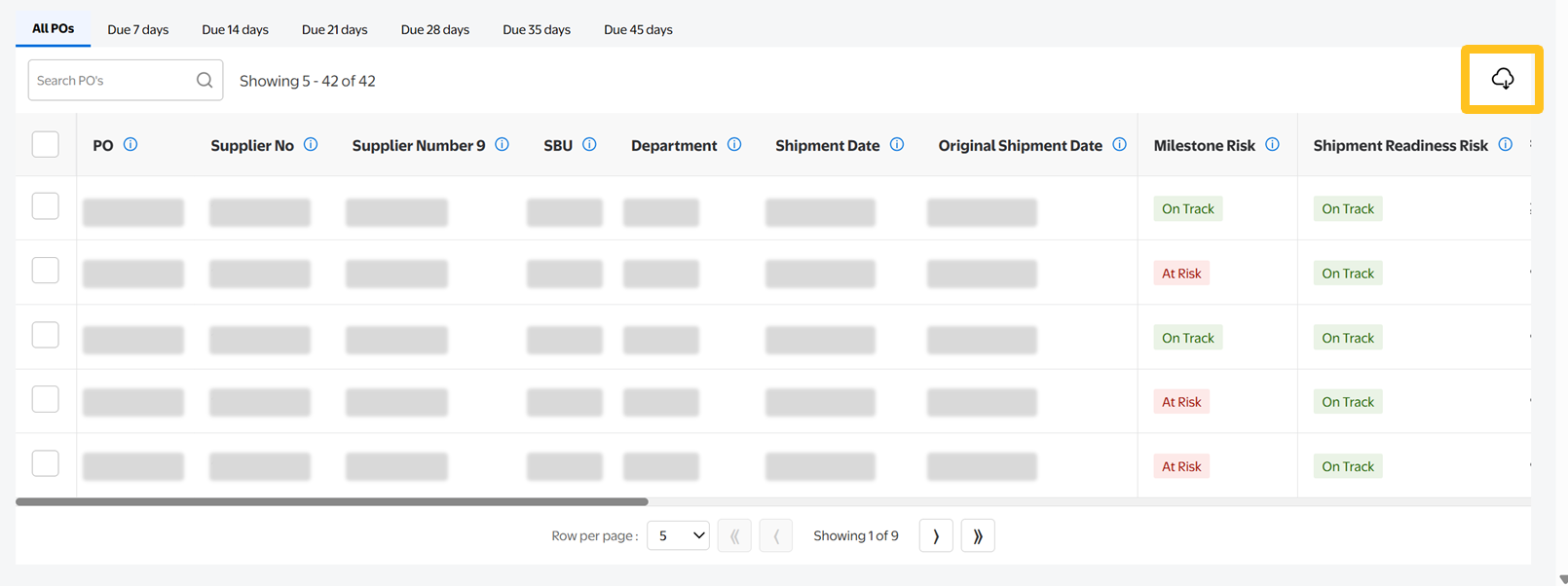
- Click the cloud icon to download the data from a tab.The data shown is dependent on the high-level filters set above.
- Risk Indicators
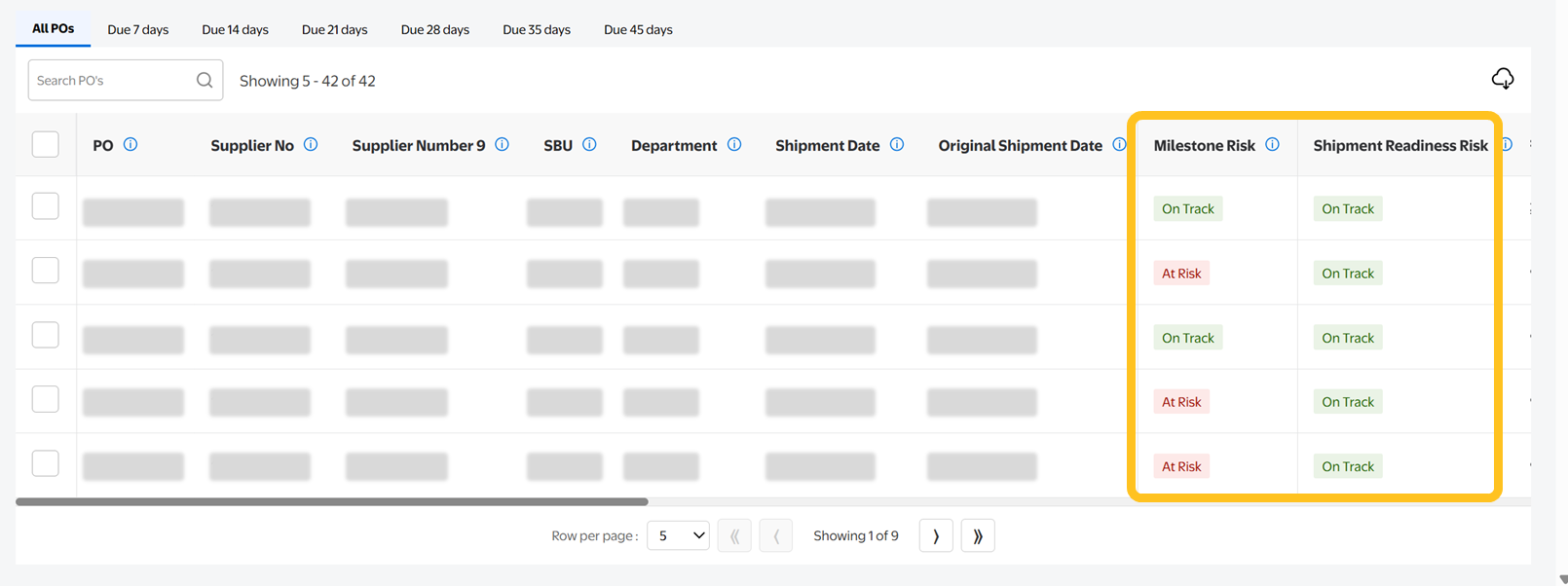
- Milestone Risk shows At Risk if any key milestone (PPT, PT, FI, etc.) has High or Medium risk.
- Shipment Readiness Risk becomes At Risk if any readiness field is marked at any of the intervals (7, 14, 21 days, etc.).
- Both default to On Track unless risks are identified.
- Shipment Risk Summary: Overview of shipment risks to allow you to address issues quickly with timely resolution by clicking on the days at risk to jump to the table view of the POs.
Updating Milestones
The milestone fields will vary by PO category (GM or Apparel).
- GM milestone fields include: FI Planned Date, At Risk X Days (where X = 45, 35, 28, 21, 14, 7), Delay Reason, Sub Reason, Delay Description, Comments (optional field).
- Apparel milestone fields include: PT Planned Date, FI Planned Date, Fabric ETA Planned Date, Fabric ETA Actual Date, Fabric ETD Planned Date, Fabric ETD Actual Date, Sewn Qty Actual, Pack Qty Actual, Cutting Date Planned, Cutting Date Actual, At Risk X Days (where X = 45, 35, 28, 21, 14, 7), Delay Reason, Sub Reason, Delay Description, Comments (optional field).
- In one of the PO Shipment Timeline tabs, click the check box next to the PO(s) you want to update.

- Click Modify Milestones.

- This will open a new Modify Milestones page where you can enter/update milestone details.

- Provide the milestone information in the editable fields (e.g., FI Date Planned).
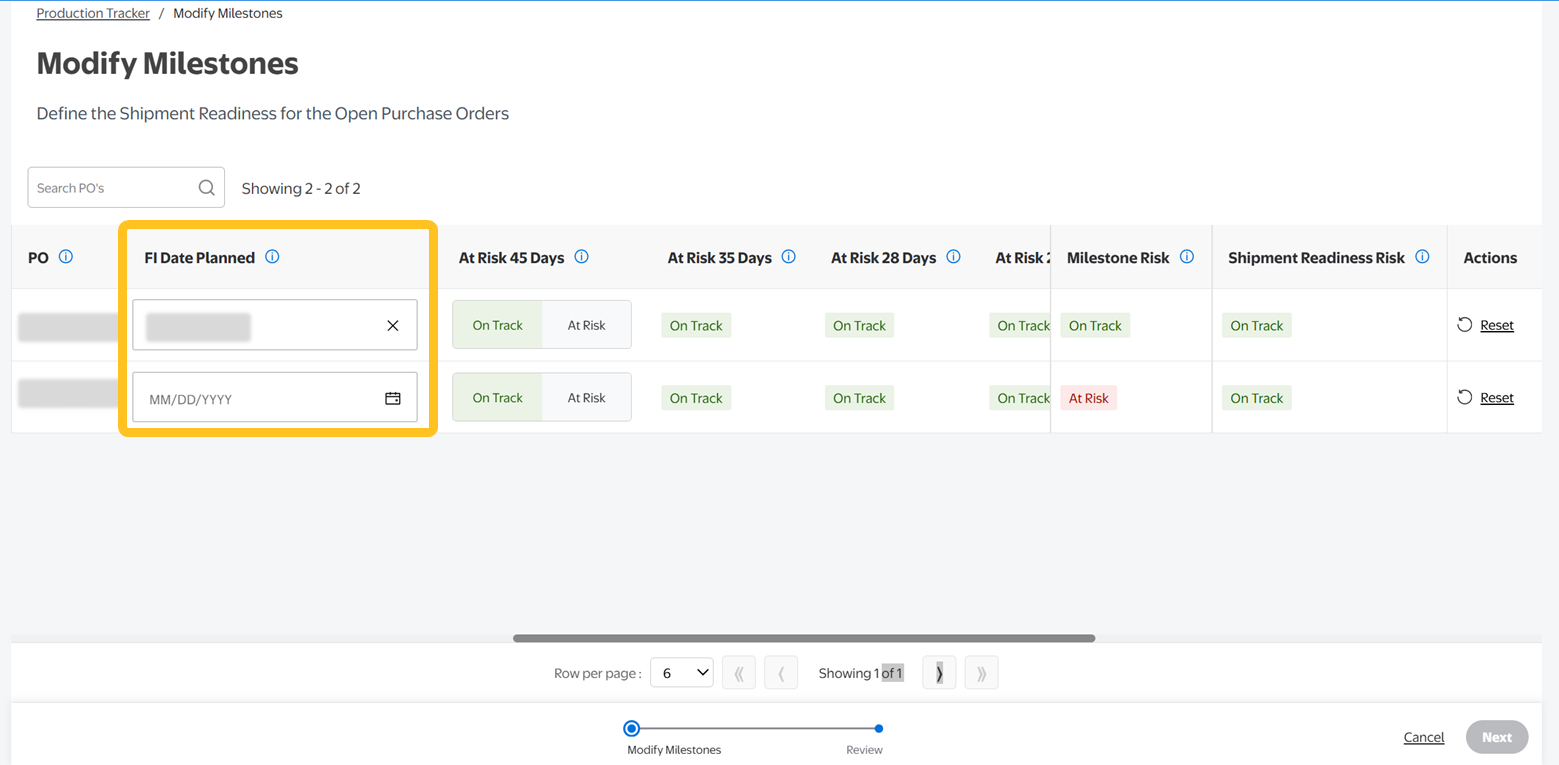
- When a field is required, it will be highlighted. If the required field is not updated, you must provide a delay reason. This will flag the related milestone as High Risk.

- If you've selected more than one PO, you will be prompted to provide delay reasons if the other PO FI Planned Date remains empty.
- When a field is required, it will be highlighted. If the required field is not updated, you must provide a delay reason. This will flag the related milestone as High Risk.
- Under a milestone (e.g., At Risk 28 Days, 21 Days, etc.), select At Risk or On Track based on confidence or risk of meeting the ship date.Shipment risk fields are reviewed every 7 days starting 45 days before shipment. At any time, only one field is editable based on days remaining (e.g., 32 days left enables "At Risk 28 Days"). When At Risk is selected, it will mark the following milestones as At Risk.
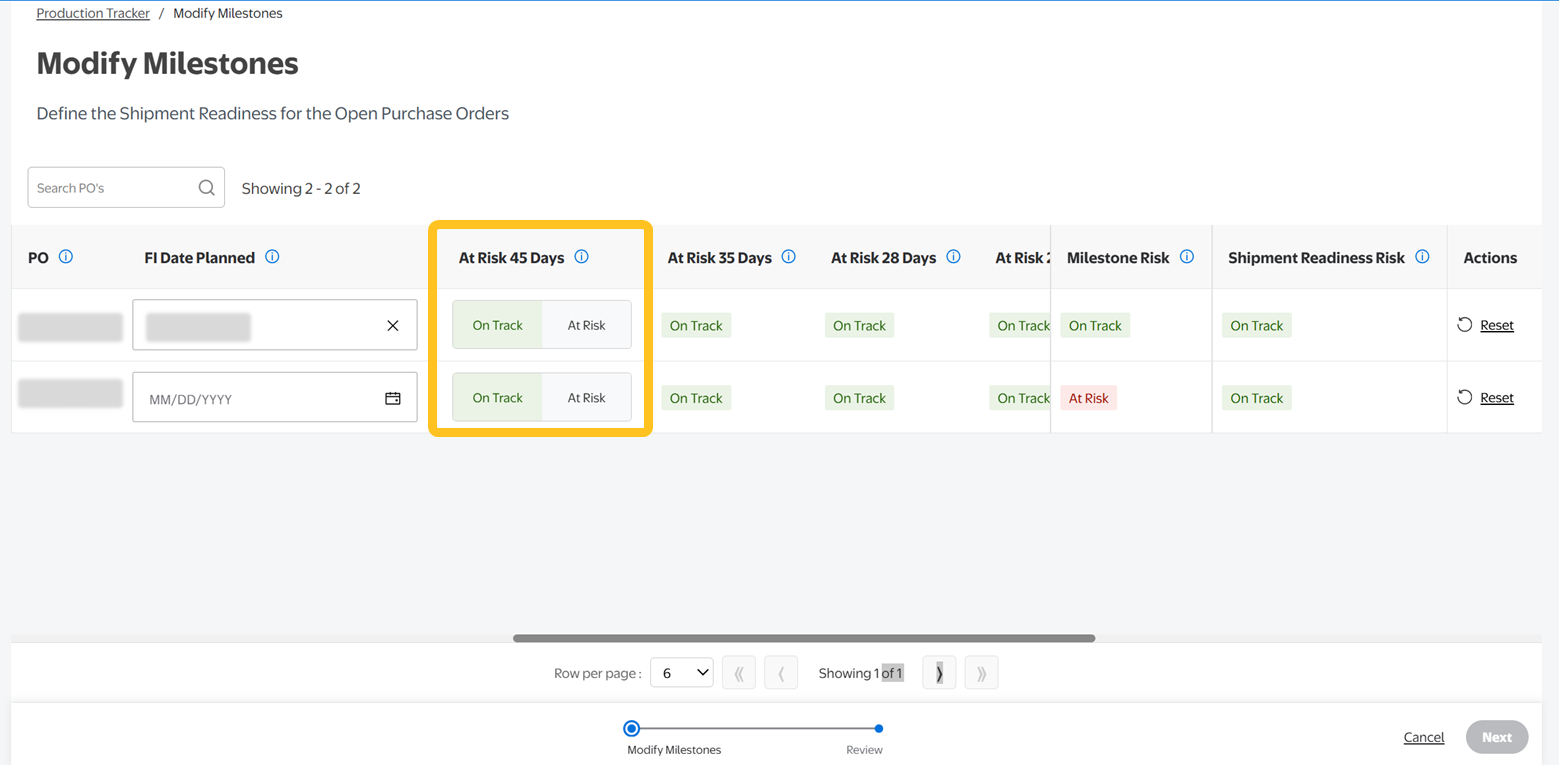
- When updating the milestone to At Risk, select a Delay Reason, Sub Reason and Delay Description from the dropdowns.

- Once you've made all changes to the PO, click Next to review your updates.

- Click Submit to save the updates.

Bulk Upload Milestones
- To update multiple POs at once (batch updates), click the cloud icon in the tab to download the excel file.
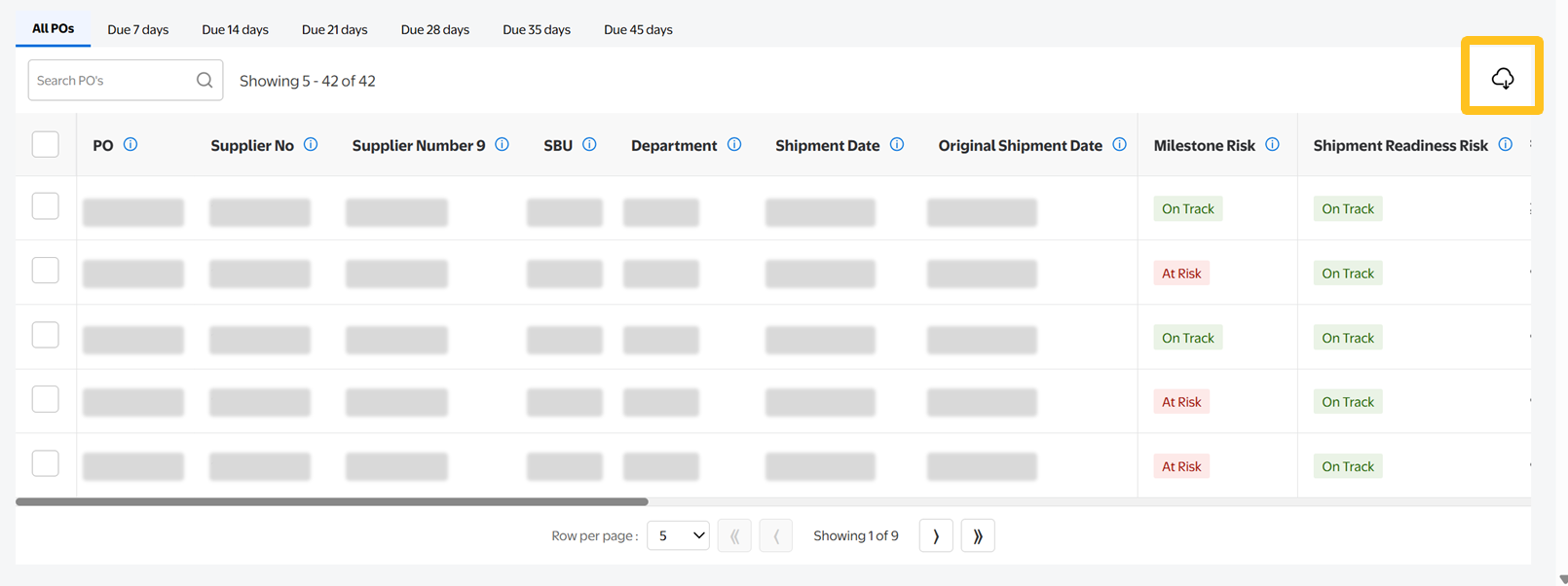
- To select specific POs, select the check box next to each PO and click the cloud icon to download only those.
- Provide the milestone updates in the excel, then save the updated file to your computer.You can only make changes under the Supplier update area of the file.

- Select Bulk Upload Milestones.
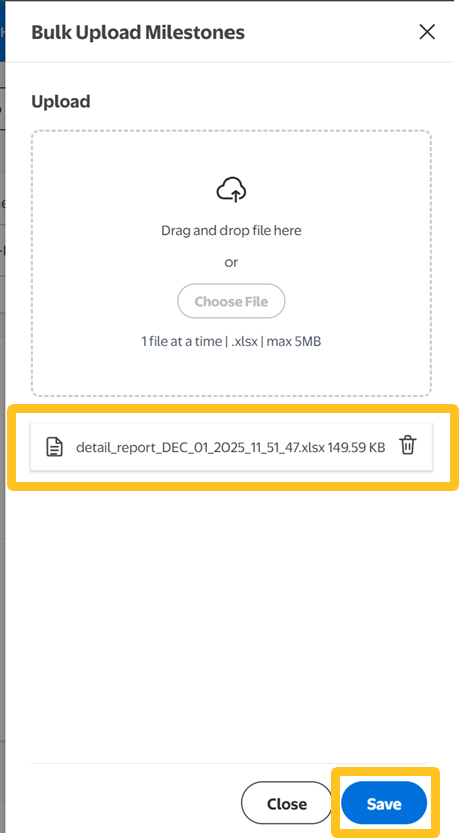
- Upload the file by drag and drop, or click Choose File.
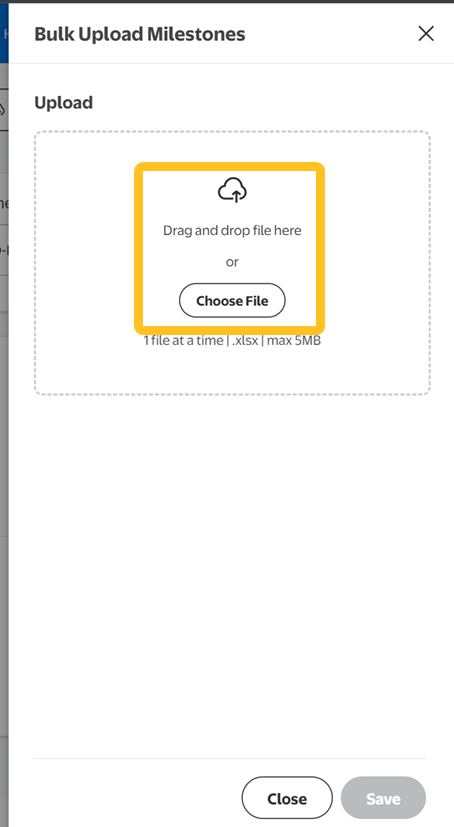
- You'll see the file name that you selected. Click Save to initiate the data processing.
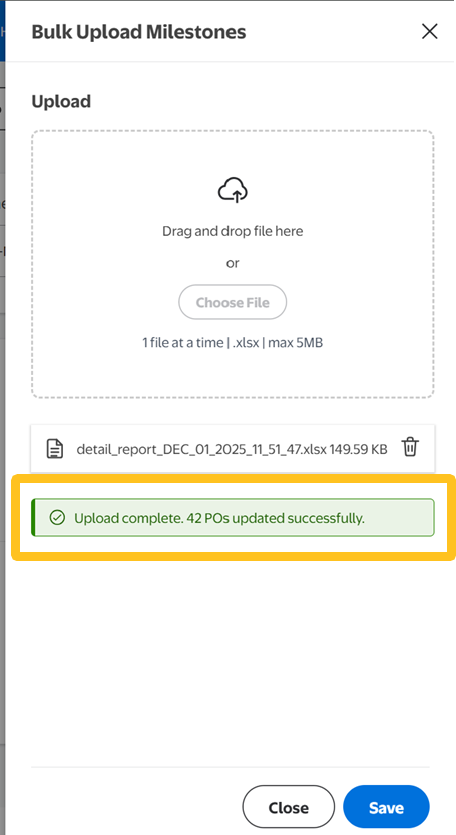
- You will see a green confirmation message when it's been successfully validated and updated. You can close the bulk upload window when you've received confirmation.
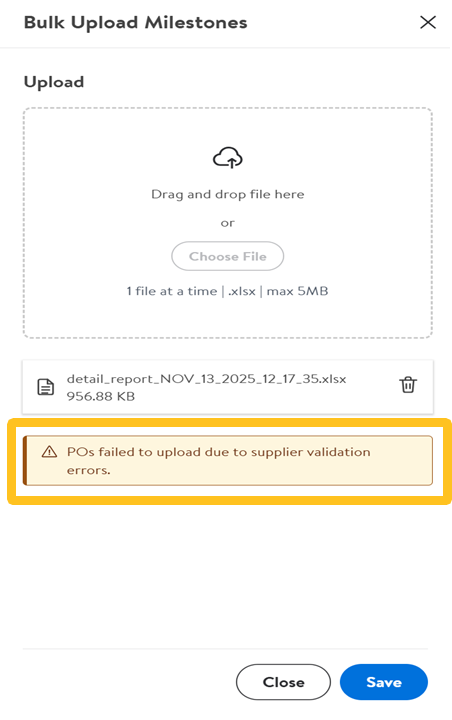
- If any POs fail during bulk upload, the system will generate a file with the errors stating:
- The POs that were not updated
- The reason for each error
- If any POs fail during bulk upload, the system will generate a file with the errors stating:
Error Messages
Refer to the table below to correct errors during the upload process.
Error Message | Action |
Incorrect Date Format | Use the standard date format MM/DD/YYYY |
Shipment Readiness Status | Only predefined values such as "At Risk" or "On Track" are accepted. Any other entries will be rejected. |
Delay Reasons | Must match the options provided in the delay reason matrix (available in the Delay Reason Reference tab). Any new or unrecognized entries will be rejected. |
No Addition of Purchase Orders | Cannot add any new purchase orders that are not already listed. This will result in the values being ignored by the system. |
FAQs
1. Is Production Tracker mandatory for all production tracking?
Yes. Production Tracker will replace CPV as the system of record for all production milestones (PPT, PT, FI, cargo booking, etc.).
2. How does Production Tracker benefit suppliers compared to CPV?
Production Tracker provides clearer milestone ownership, earlier risk visibility, and reduces last-minute escalations and manual follow-ups.
3. When should delays be updated in Production Tracker?
As soon as a risk or delay is identified. Early updates allow more options for mitigation and reduce exceptions later.
4. When should C&E be used?
Only for unforeseen, uncontrollable, last-minute exceptions. Production Tracker is intended to prevent the need for C&E in most cases.
5. What happens if Production Tracker is not updated accurately or timely?
Late or missing updates can lead to reactive escalation, reduced mitigation options, and potential performance impacts.
6. Can suppliers provide feedback on Production Tracker?
Yes. Supplier feedback is encouraged through Supplier One > Feedback and will be used to continuously improve the tool and process.
Additional Support
If you have additional questions or need further support, contact your Walmart representative or contact the Production Tracker team.