AI-Assisted Item Setup
AI-Assisted Item Setup saves suppliers time by using Gen AI to generate required product attributes. This Supplier One feature helps complete product details in an automated manner, reducing manual setup time, and improving the accuracy of item descriptions.
Setting up items using the AI-Assisted Item Setup functionality
The following 4 steps are not changing with this new GenAI setup process, please follow your current process leading up to step 5.
Step 1: In the setup hub of Supplier One, click on Start with AI setup.

Step 2: Provide the general item setup information as you normally would during the item setup process and click continue. This information will include the shipping channel as well as the supplier contract information.
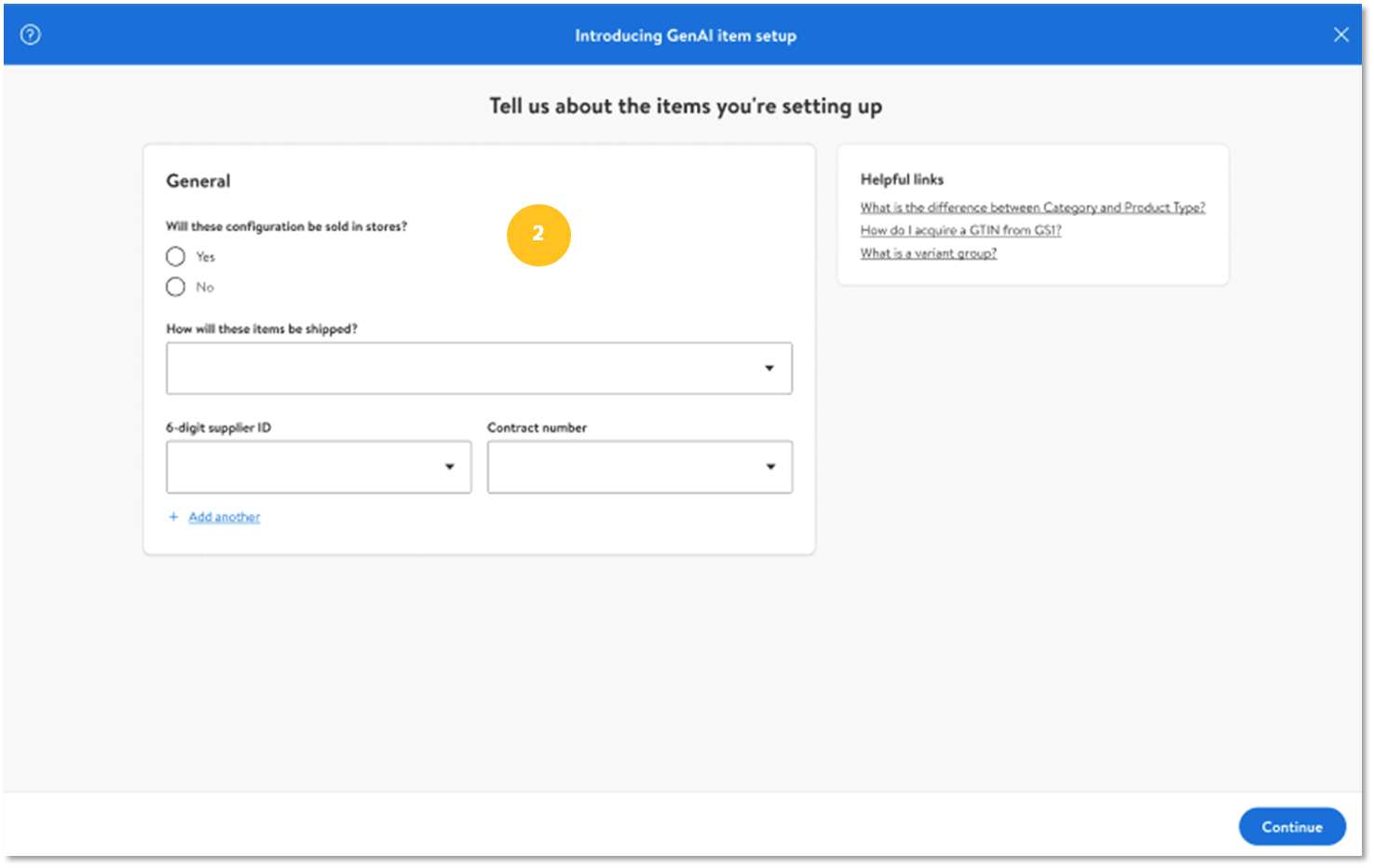
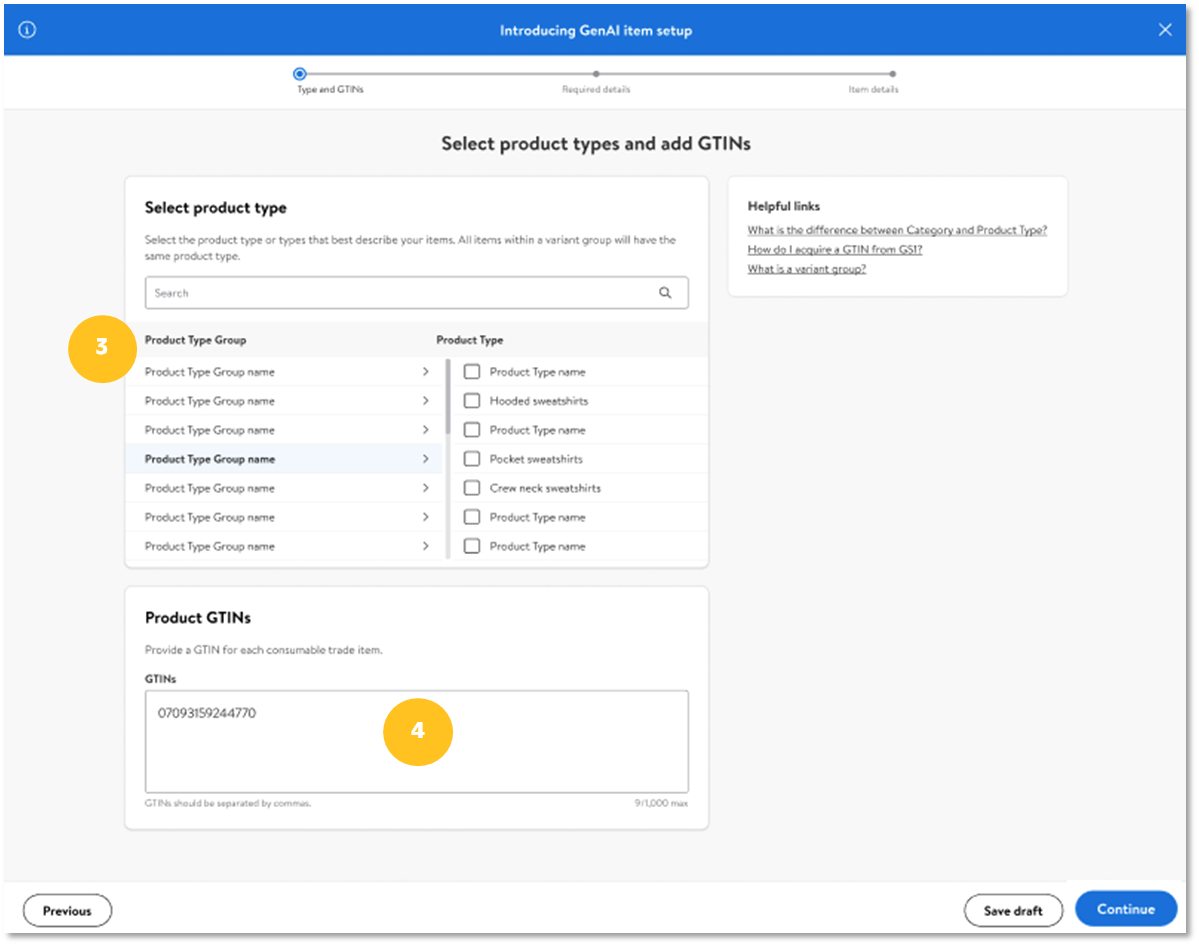
Step 3: Select the product type(s) for the item(s) that will be setup during this process.
Step 4: Provide the GTIN(s) for the item(s) that will be setup and click continue. Please note that there is a current limit of 20 items.
Step 5: If users have item information in a structured excel template click on Add Document to upload this fil. To learn more click here.
Step 6: Users can also provide additional item information in the chart at the bottom of the screen. This includes imagery, Product name, Product description, and Keywords. Keywords is a free-text field where you can enter anything else you may want to communicate about the product that is not captured in the Excel upload or remaining chart.
Step 7: If one of the GTINs provided has an existing item number in Walmart’s catalog, user can select the existing GTIN Tab and select an existing configuration (See note below for more details).
Step 8: Users can opt in and have some of the item attributes generated for content enrichment using AI by clicking Accept AI Recommendations. The attribution that is generated will be more contextualized fields that matter most to customers, such as Product Name, Site Description and Key Features.
Step 9: Once all available information has been provided click continue.


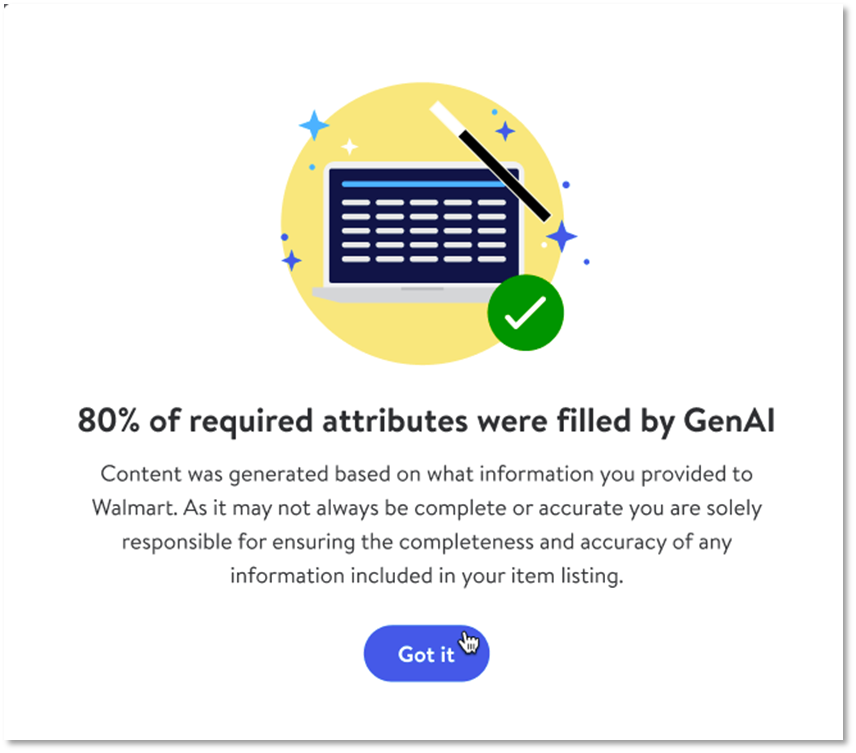
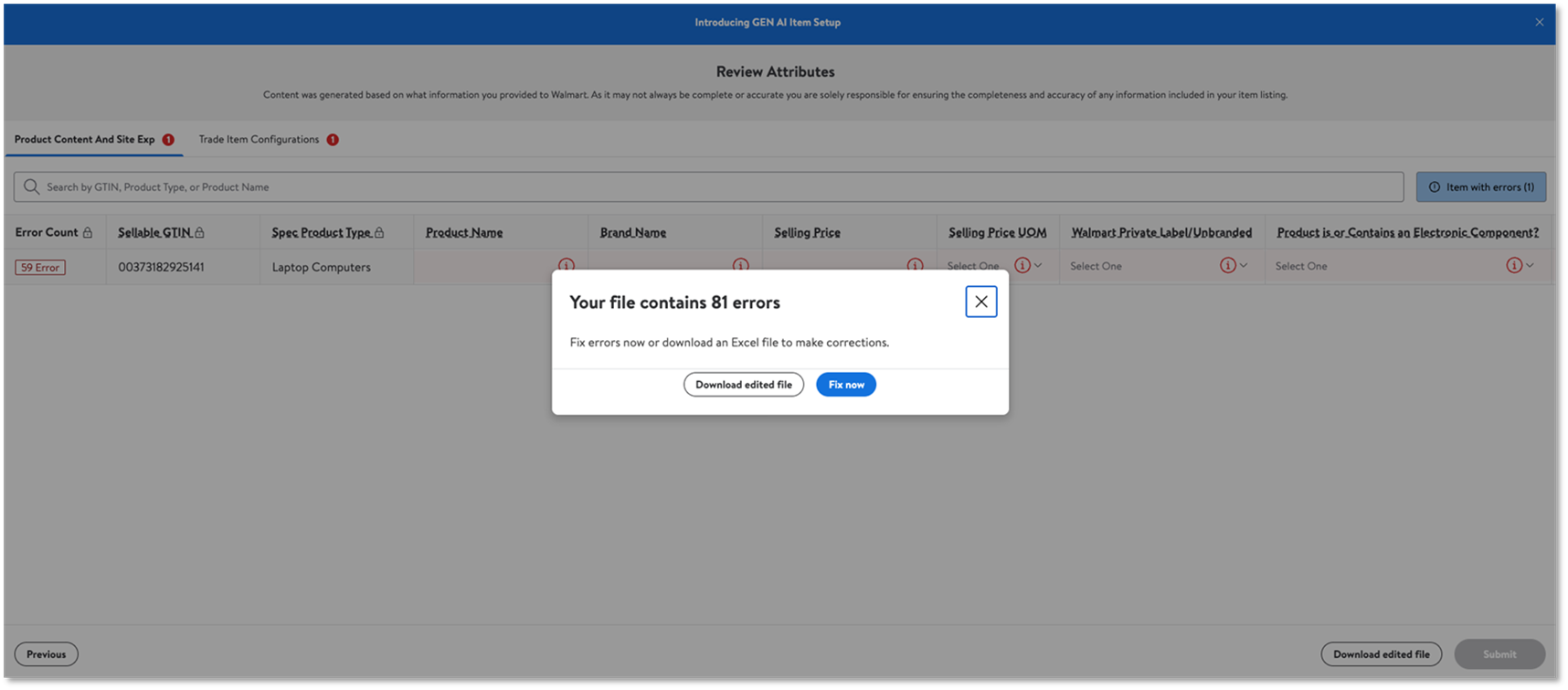
After the user clicks Continue, Supplier One uses the provided data to generate item attributes. When finished, a popup displays the percentage of required product attributes generated. Click Got it to review the recommendations.
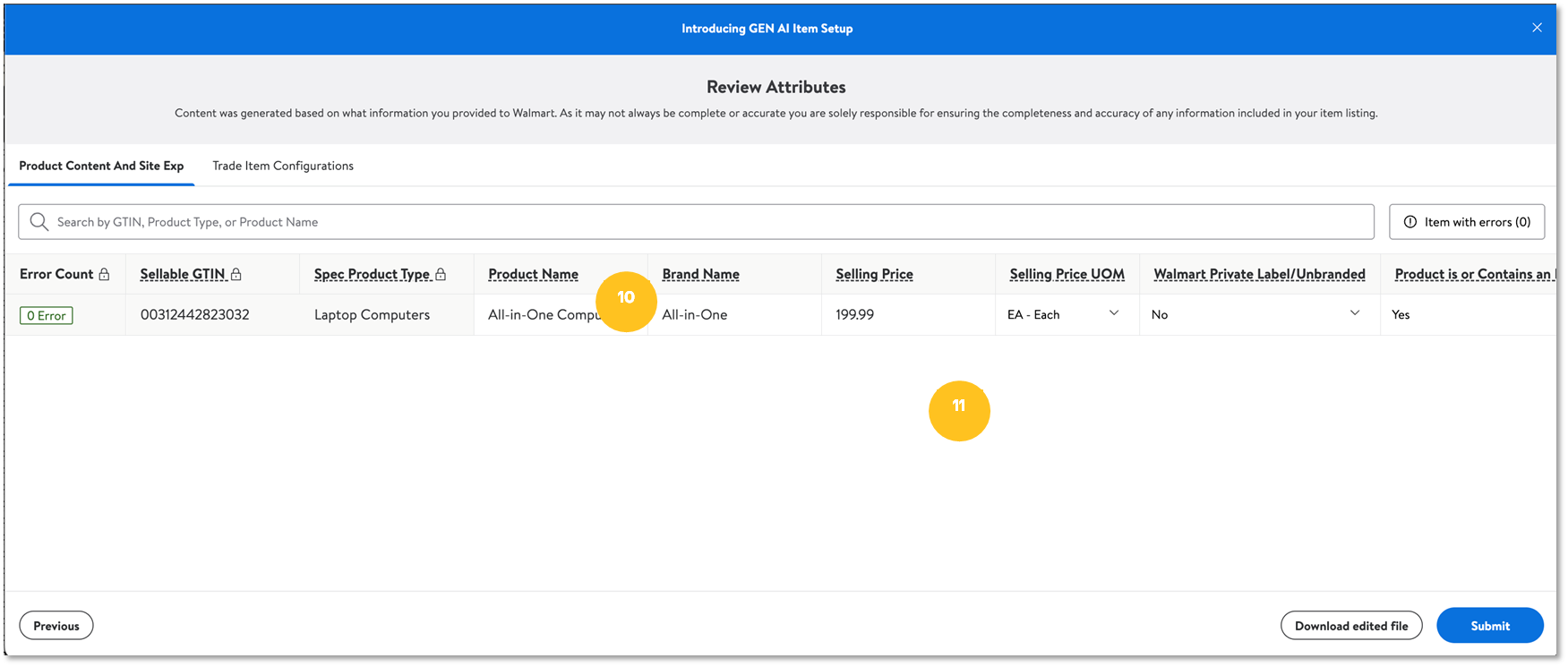
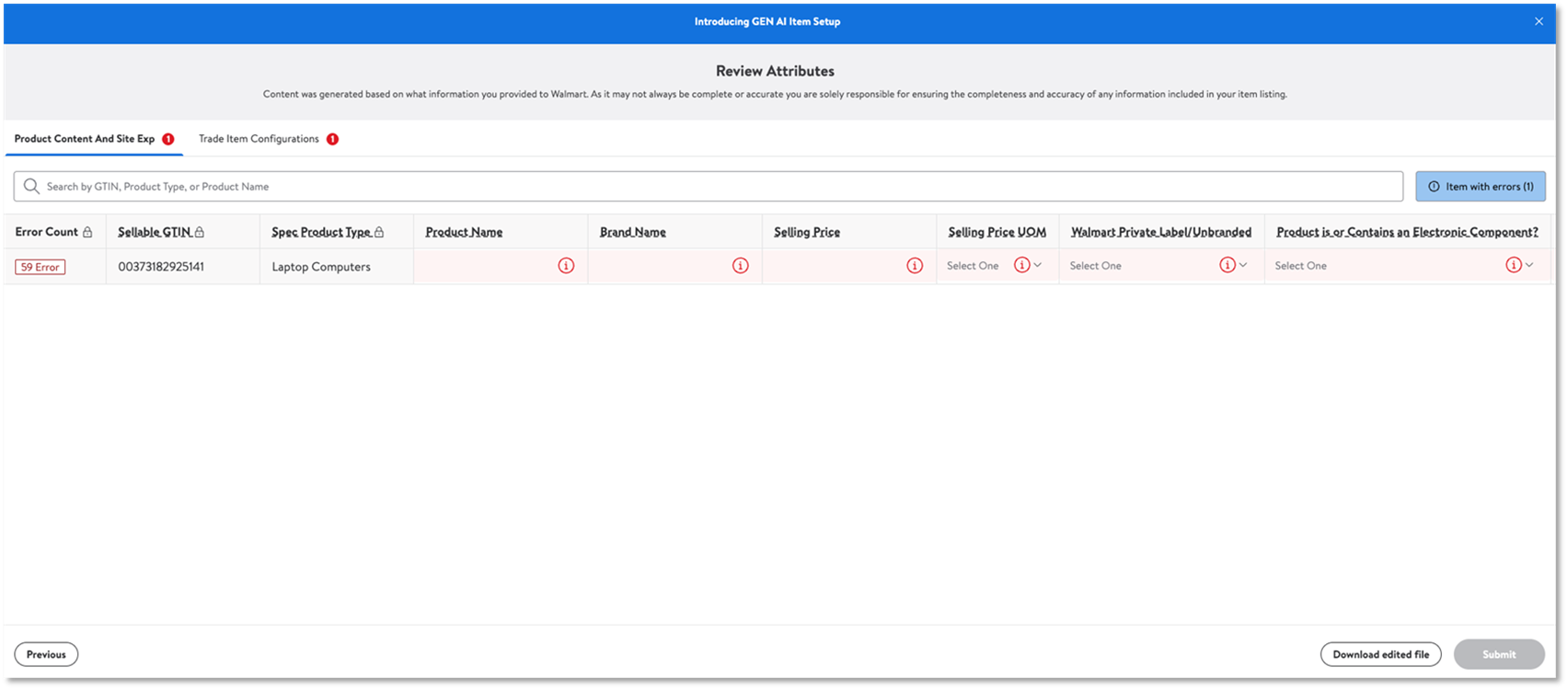
Step 10: Users will now have the ability to review and update any of the recommendations they choose.
Step 11: When the review has been completed and any corrections have been made, users will click Submit to finalize the item setup activity.
A few things to remember:
- Following step 10, users can download a template and follow previous workflows to complete the item setup activities. If the user chooses to stay in the in-app process continue to step 11.
- Attribution on this screen will look like the way it looks on the item setup spec, there are two tabs (Product Content & Site Experience/Trade Item Configurations) that will need to be reviewed and updated.
- It is important to review all AI generated attribution to ensure it is complete and accurate before submitting the activity.
- Any required attribute that is not generated via AI will need to have a value present before completing the item setup activity. Users will see the following error message for attributes missing values.
Upload Template Best Practices:
In step 5, users are asked to upload a template with item information. Please refer to the below for some best practices with that template.
Template Layout
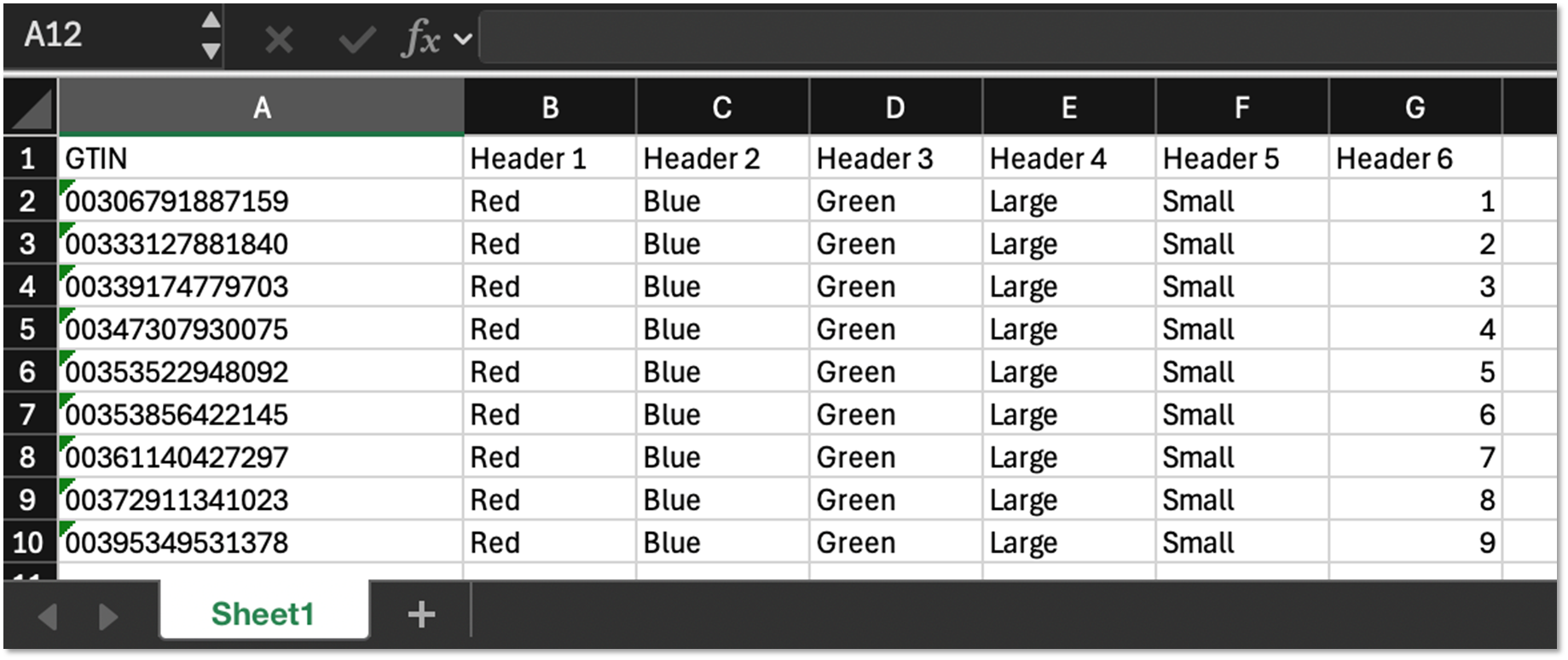
- Ensure the file contains only one worksheet/tab.
- Confirm that the first header begins in cell A1.
- Ensure that item attribution begins in cell A2, where each row begins a new item.
- Ensure the file contains only one set of headers—do not include repeated column headers.
- Verify that no header cells are merged across columns.
Attribute Values
- Make sure all GTINs being set up are included with their leading zeros.
- Confirm that leading zeros, GTINs, and other similar values are stored as actual text within the cell—not applied through Excel formatting or generated by formulas such as VLOOKUP.


If users experience any error or issue that they cannot resolve on their own, please file a case ticket in Supplier One for further assistance.