Track Submissions by Products
You can always track submissions by Submission IDs in your Submissions Manager. If you need to take action on a submitted item, you'll receive an email with a link to the details for the Submission ID.
Now, you can also view submissions by products or ship nodes in your Submissions Manager. This view shows each item or ship node submission in Supplier One by users who share your 6-digit Supplier ID(s). Easily track where specific items are in the review and approval process.
new image
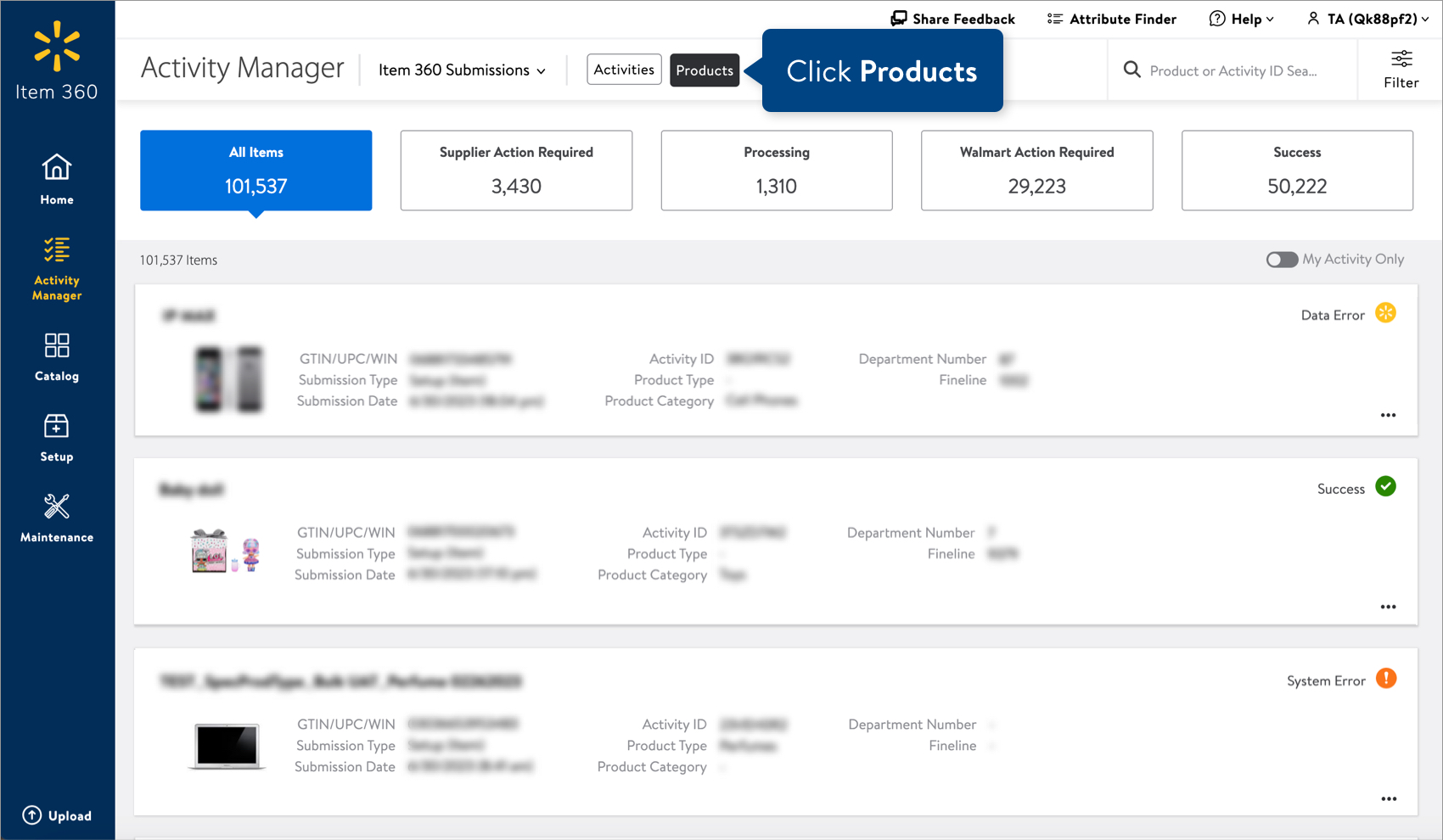
Product or Submission ID Search
You can find specific items or activities using the Product or Submission ID Search bar next to the filter icon.
new image

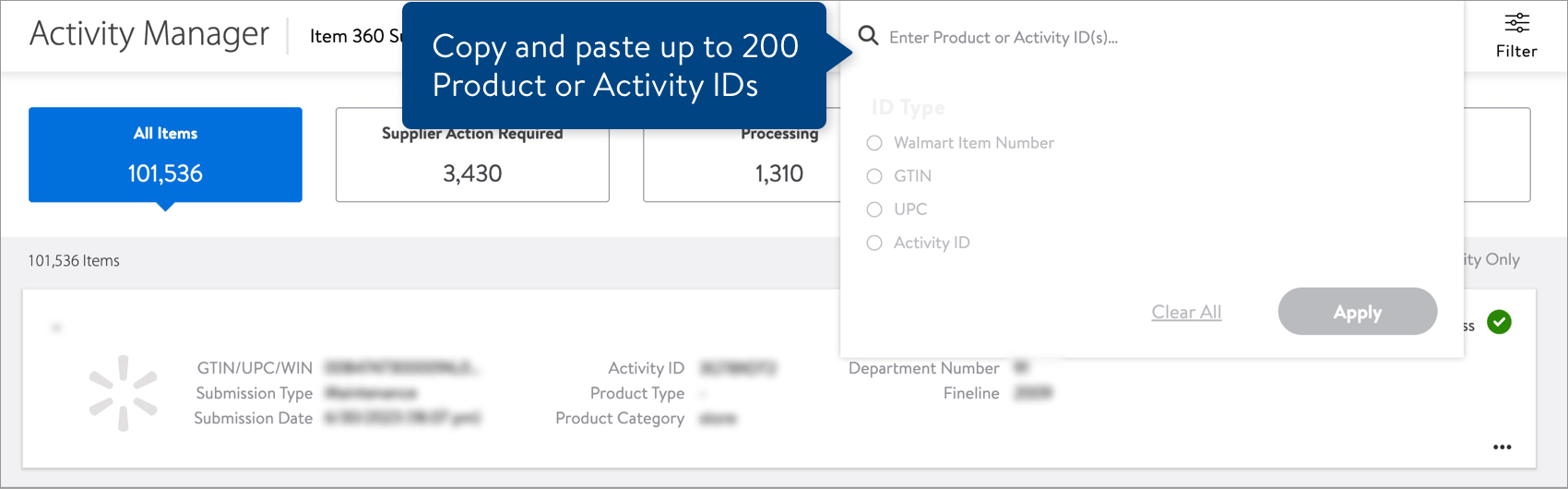
Copy and paste up to 200 Product or Submission IDs in the search bar. Remember to select the ID Type if you're searching for multiple items or submissions (all of your IDs must be the same type). You do not need to select an ID Type if you're searching for only one item or submission. Then, click the Apply button.
new image
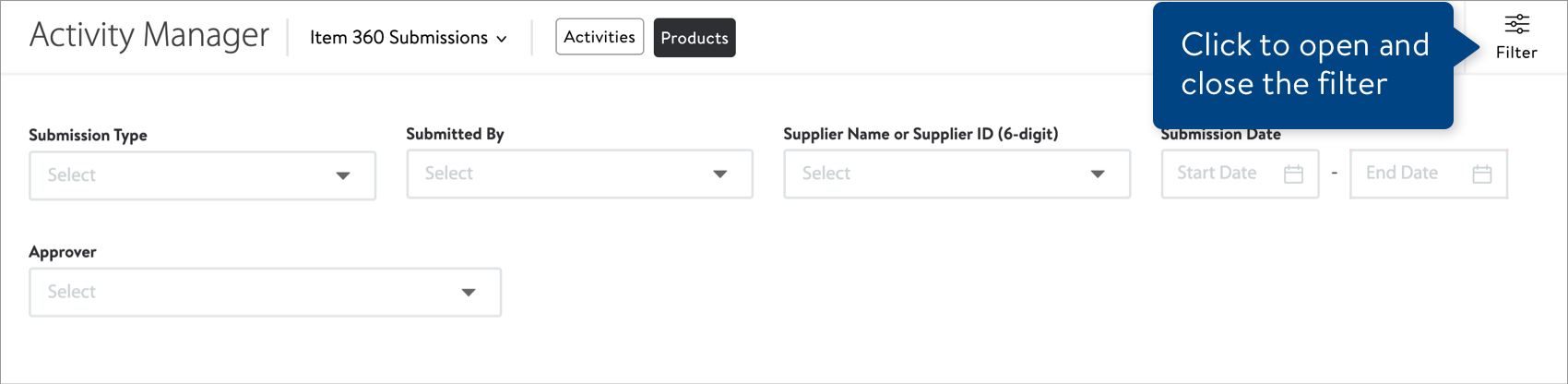
Filter
Click the Filter icon to narrow down your list of items using any of the fields shown.
new image
Quick Filters
Click one of these quick filters to see all of the items with that status.
new image
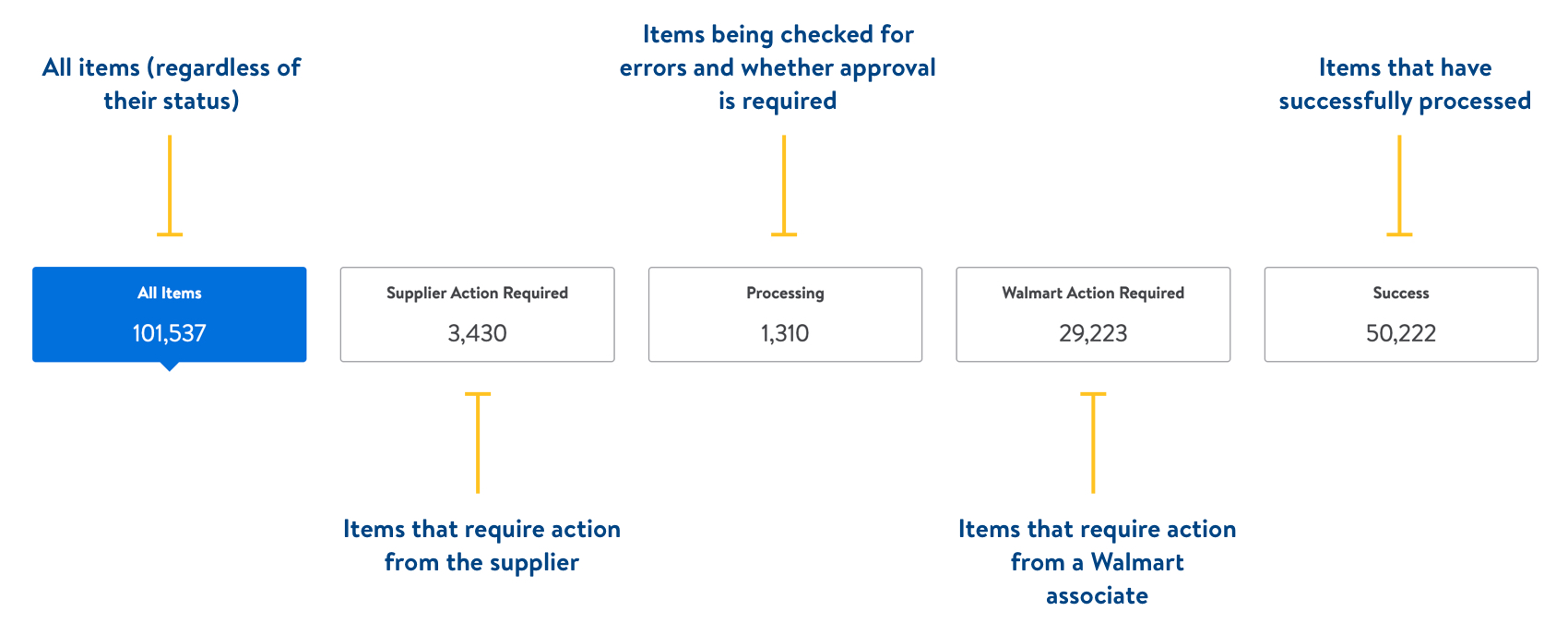
Cards
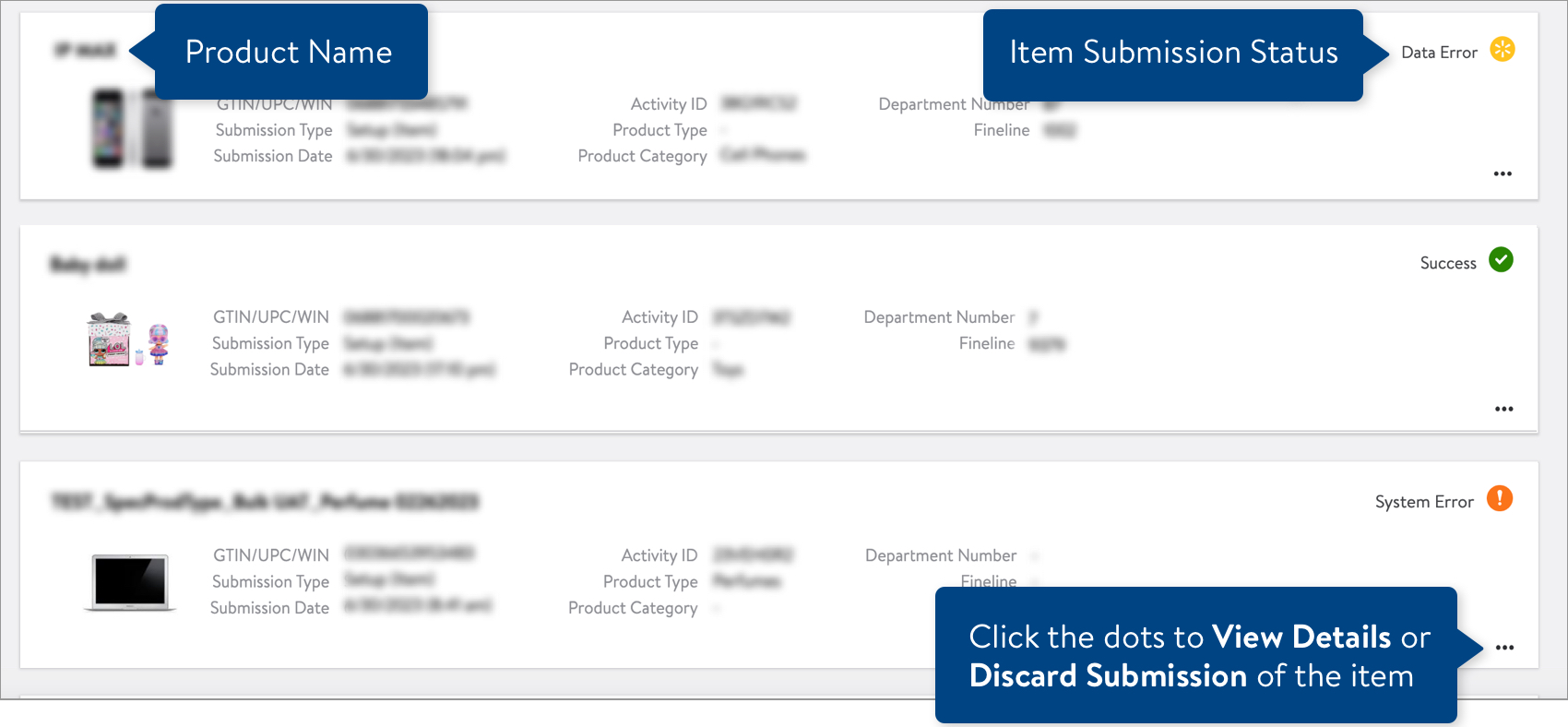
See the table below the image for details about the card data.
new image
Data | Description |
Product Name | The Product Name for the item. |
Item Submission Status | Indicates the status of the item:
|
GTIN/UPC/WIN | The Product ID for the item:
|
Submission Type | Indicates whether the item was submitted in a setup or maintenance submission. |
Submission Date | The date the item was submitted in a setup or maintenance submission. |
Activity ID | The alphanumeric ID that was automatically assigned when the submission was made. |
Product Type | The Product Type under which the item is set up. |
Product Category | The Ironbank category under which the item is set up. |
Department Number | The financial department under which the item is ordered or replenished. |
Fineline | Part of the item number grouping hierarchy, the fineline number is created by merchandising to group an item more specifically than the department number. |
View Details
- Click the dots under the Actions column in the table. Then, click View to learn more about the status of the item. new image
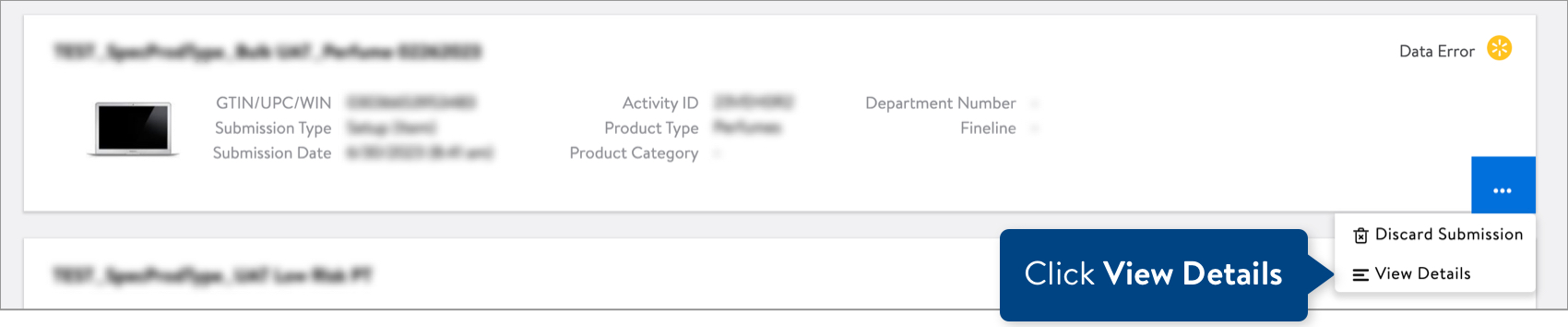
- Actions vary depending on the item submission status:
- If the item has errors, hover over the information icon at the top right corner of the card to learn more. Then, click Export to fix the errors in a spreadsheet and upload your corrected spreadsheet back into Supplier One.

- If the item was submitted for setup and the status is Success, click View All Items in Catalog to see your new item in the Supplier One Catalog.
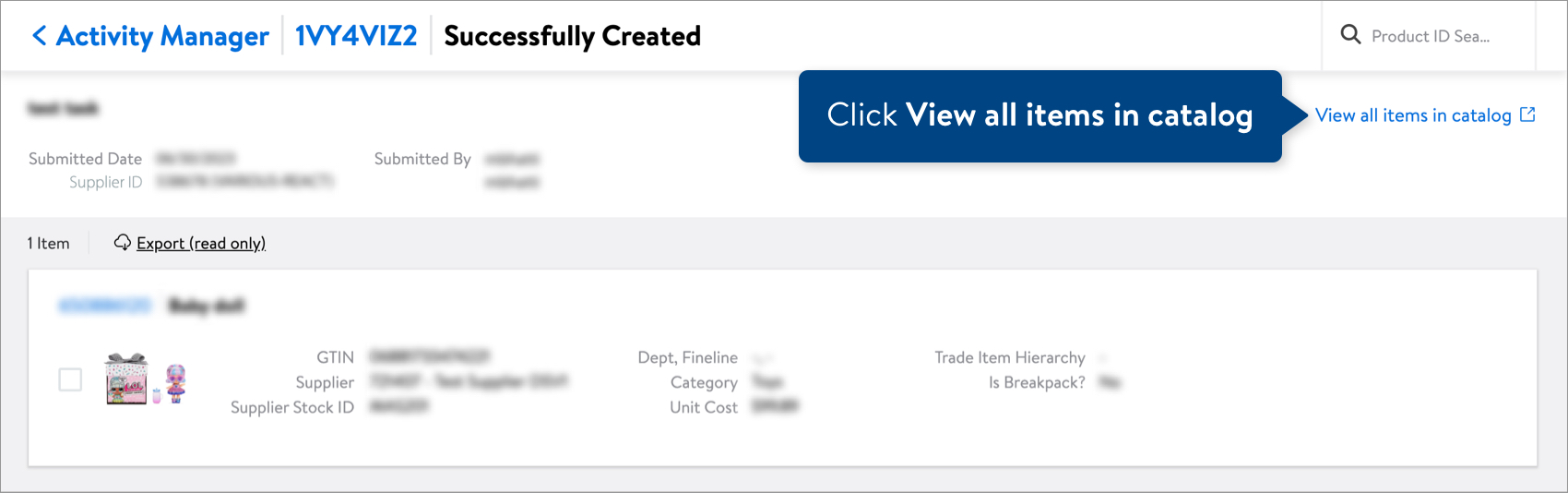 If the item was submitted for maintenance and the status is Success, view the item in the Catalog by clicking the blue Walmart Item Number or GTIN on the item card.
- If the item has errors, hover over the information icon at the top right corner of the card to learn more. Then, click Export to fix the errors in a spreadsheet and upload your corrected spreadsheet back into Supplier One.
Discard Submission
Items are purged from the system automatically after 90 days. If you have incorrect or duplicate item submissions that are stuck in the Supplier Action Required or Walmart Action Required status, you can discard the item submission in the Submissions Manager.
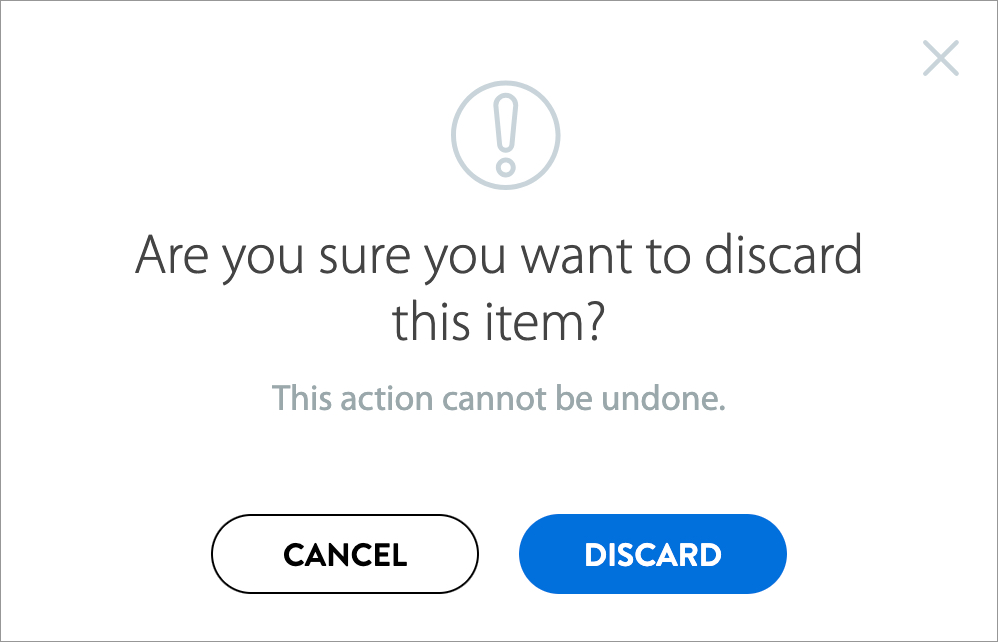
- Click the dots under the Actions column in the table. Then, click Discard.

- Click the Discard button to confirm your action. The item setup or maintenance request in the submission will be discarded.
Have Questions or Need Help?
If you experience any issues viewing and managing your submissions, please click "Help" in the top navigation menu and select "Manage tickets" to file a case ticket. Or, select "Chat" to get real-time help from our chat bot or click "Search articles" to search Supplier One HelpDocs.
Make sure to select the issue type Items and Inventory.