Guided Variant Setup
Guided Variant Setup is a new item creation experience in Supplier One that simplifies creating variant groups for Walmart.com during initial setup. Suppliers enter shared information once and attribute values will cascade across all items in the group. This guided experience also surfaces built-in checks to reduce errors and ensure items are ready before going live.
There are 2 entry points into the Guided Variant Setup workflow, first through the Walmart Intended Items section as well as items setup directly from the setup hub in Supplier One.
Guided Variant Setup – Starting from the Setup Hub
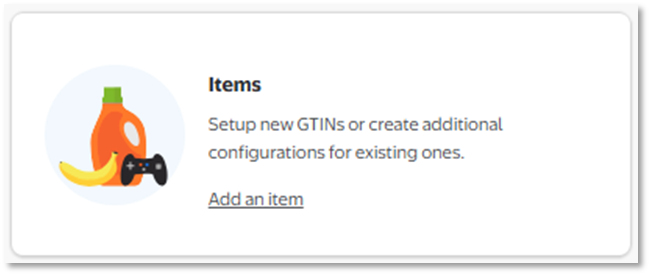
- In the setup hub of Supplier One, users will click items tile.
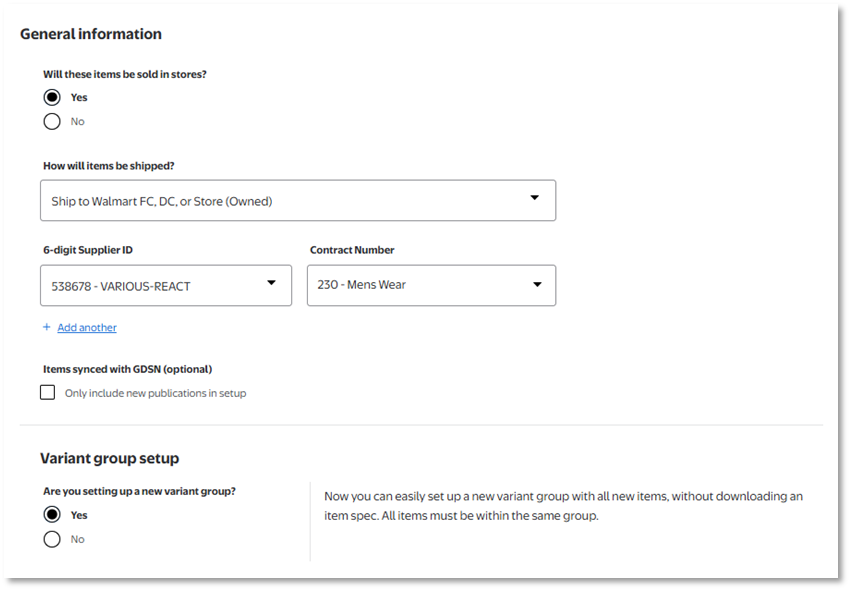
- On the next screen, users will answer the same pre-setup questions required for any item setup. They will also be asked if the items will be part of a new variant group. Select Yes to continue into the new workflow.
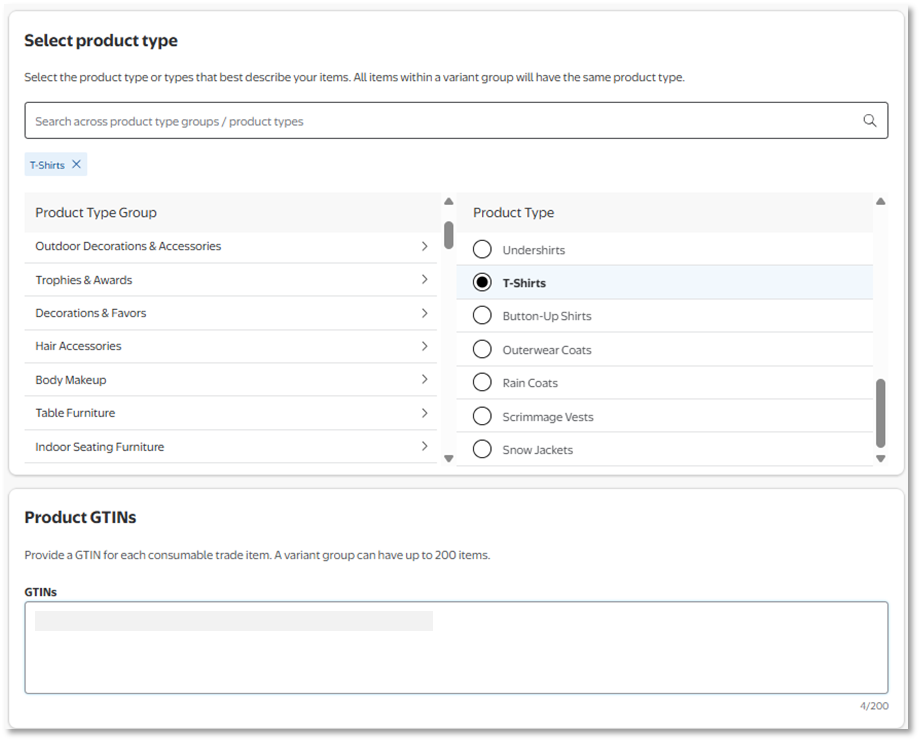
- After clicking continue, users will be asked to provide the Product Type for the items they are setting up as well as the sellable GTINs.
Guided Variant Setup – From the Walmart Intended Items Screen
- In the setup hub of Supplier One users will click on view in the Walmart Intended Items section.
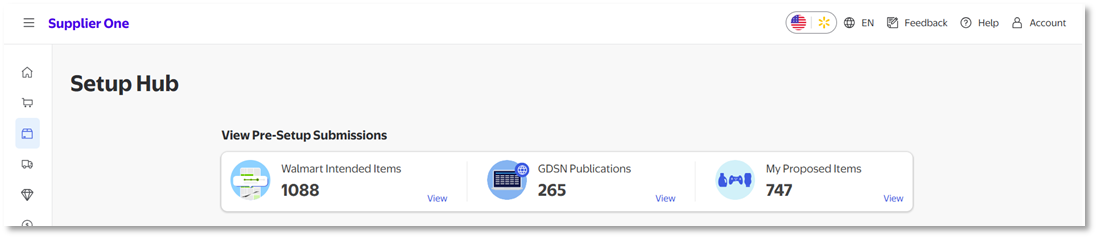
- Once in the Walmart intended items screen users will select the items that need to be setup into the same variant group and click continue setup.
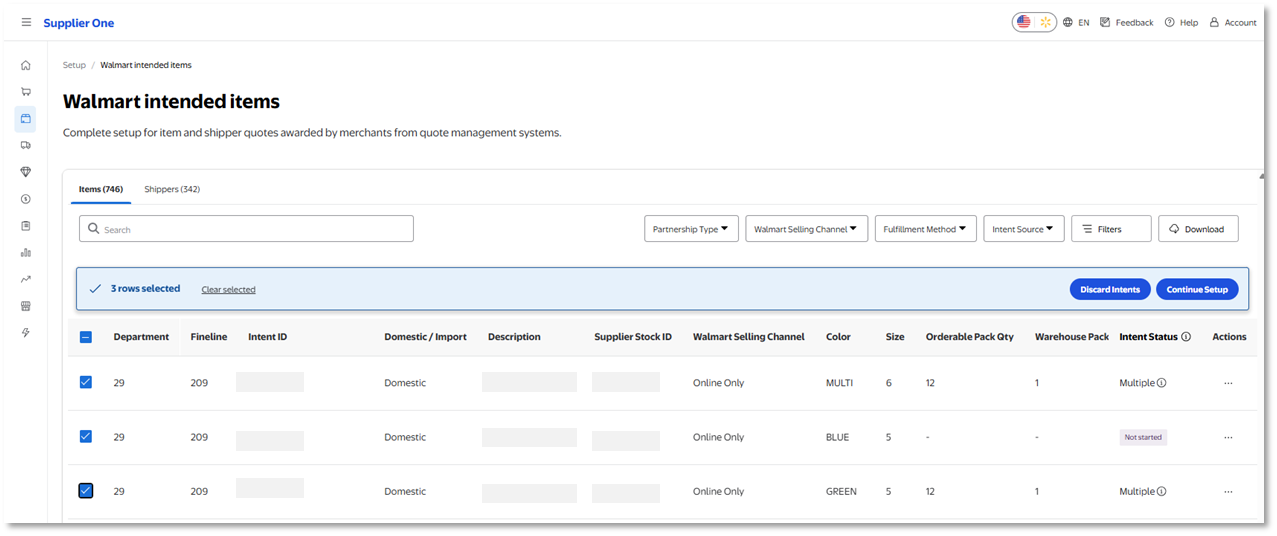
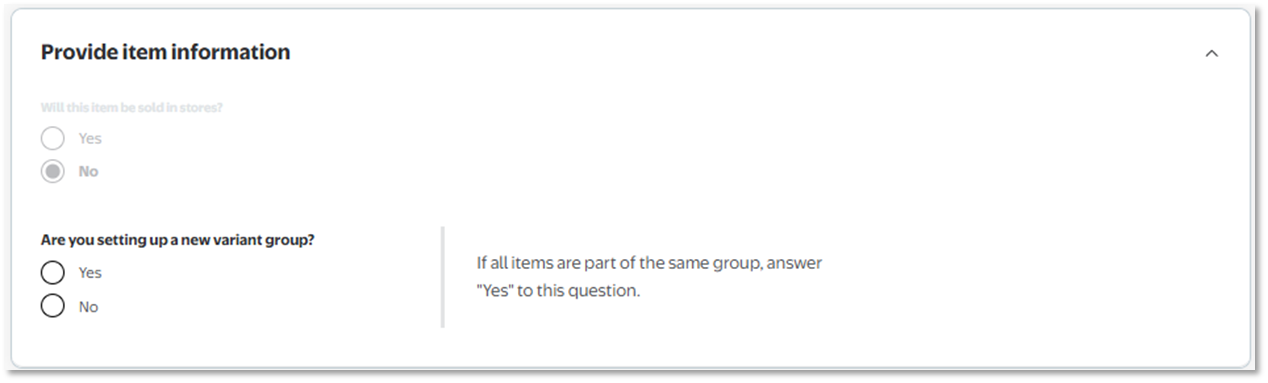
- After clicking continue setup users will select “Yes” under the question “Are you setting up a new variant group?”
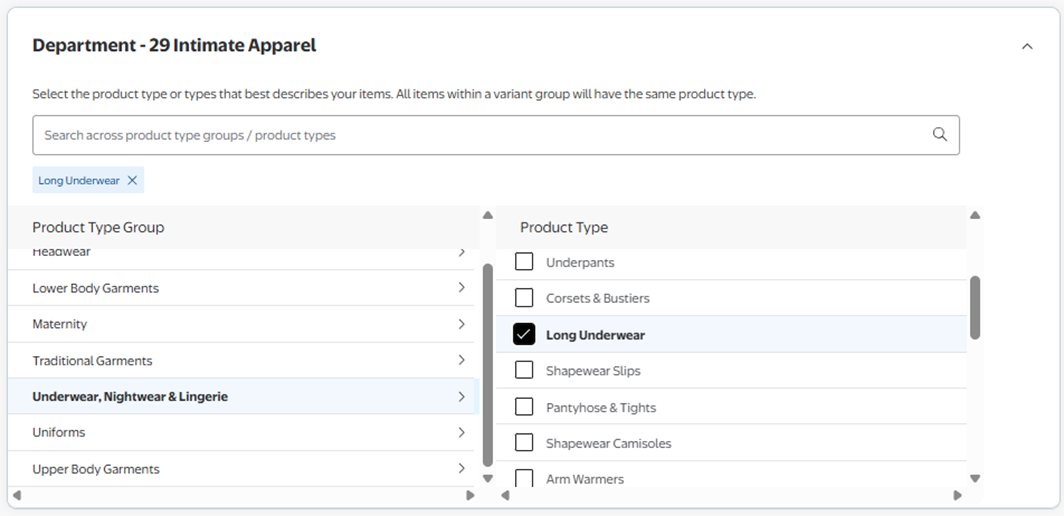
- Users will now select the product type of the items they will be setting up. Once the product type has been selected click continue.
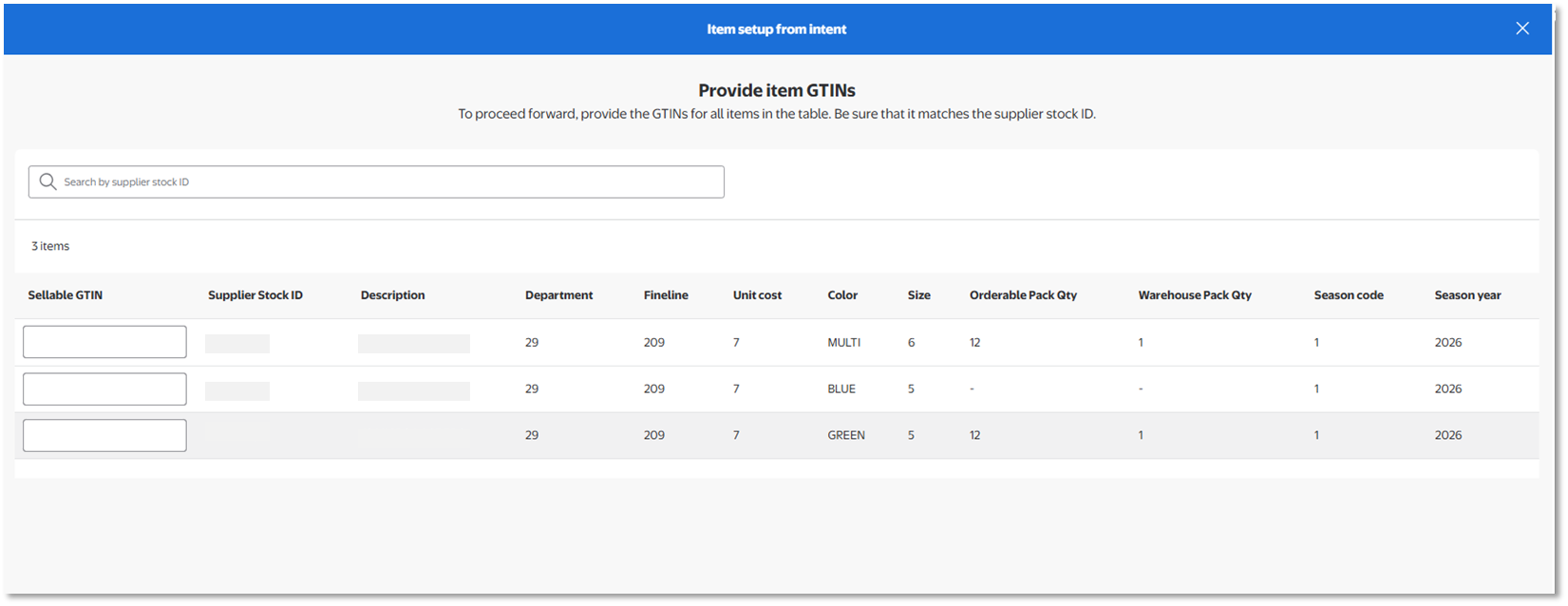
- Now users will need to provide the sellable GTIN for each item they are setting up.
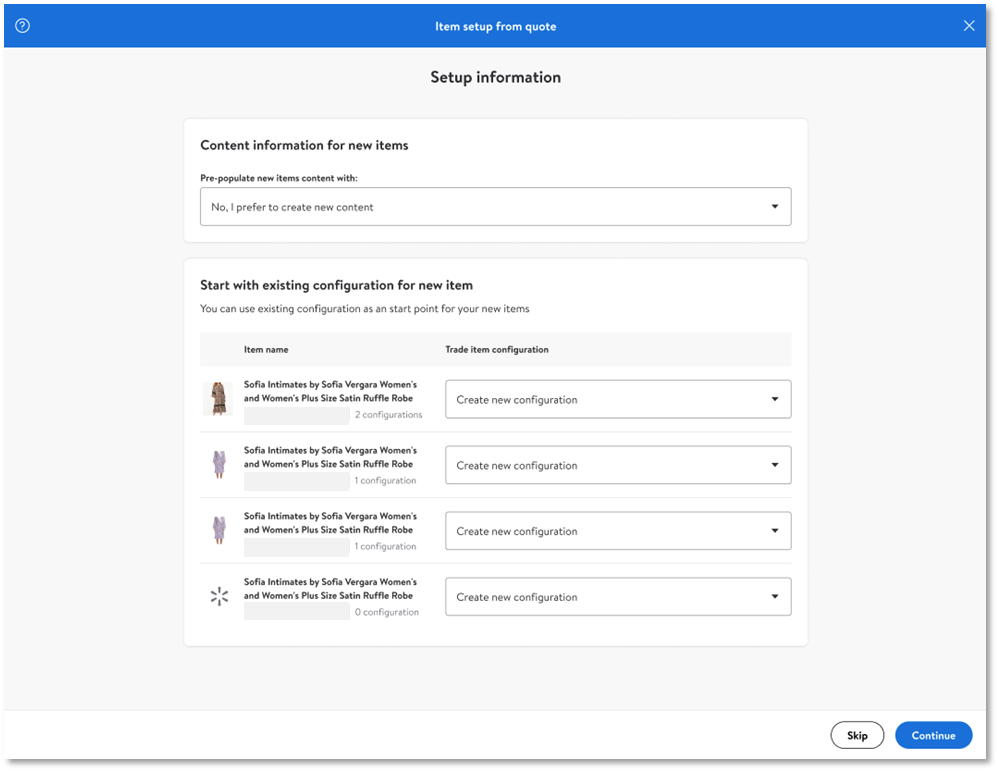
- Choosing an items existing data (Optional)
- If the item already exists in the Walmart catalog, you can either use the existing item data (which will prefill attributes for review) or create a new item from scratch.
- You can select only one existing item to prefill product details, and the system will also use catalog data for configurations—just make sure the orderable GTIN and pack size match the item you’re setting up.
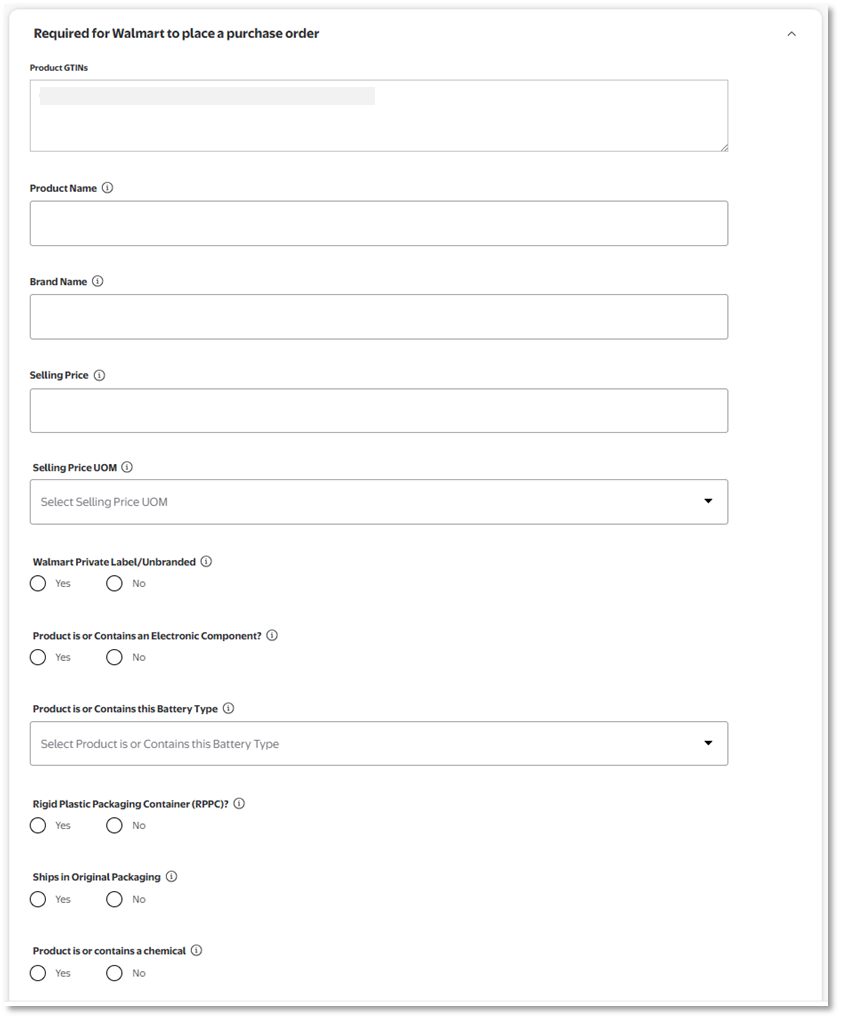
- Fill in common attributes. These attribute values will cascade to all items in your variant group. Once all required attributes are filled in, then you can proceed to downloading the prefilled excel file.
- Once the item spec has been reviewed and completed, users can upload the spec into Supplier One for processing, Check Submissions Manager to review status and fix any errors
Common Errors
Error Message | Next Steps |
One or more items in this variant group contain errors. Please resolve all errors before submitting the group. | Variant items must all be submitted together so that the variant group forms correctly during system processing. If any item is in error, the entire group will not pass through creation. Correct all errors and re-upload the file to proceed. |
Duplicate validation attribute values. All attribute values must be unique within a variant group. | If two or more items have the same variant criteria, you will see this error. A few ways to resolve, make sure to select the path that best matches your scenario. 1) Make the attribute criteria unique. Ex: Variant attributes are Color and Size. If two rows contain “Red” and “Small” as your color and size, the system cannot accept this. Make the color name unique “Sunset Red” 2) Add another variant attribute (up to three attributes) to describe uniqueness to the customer. Ex: The existing group has color and size variant attributes. If there’s two versions of the color “Gray” add in third attribute of pattern to describe the difference “stripe” and “solid” |
No primary was indicated from the variant group, or primary has been selected to be removed from the variant group without selecting a new primary. Please select a primary. | One item must be selected as your primary variant. Select “Yes” in the row corresponding to your new primary. Note, if your group already has a primary variant, you will not be able to change the original primary through setup. |
There are multiple variant criteria's being used across the same variant group. Please make sure the variant criteria are the same across one variant group. | Ensure that product variant attributes are the same set of attributes for all items that will be grouped together. |
Single item variant groups cannot be created. Please add additional variants to the variant group. | When seeing this error, this means you have only entered a variant group ID to one item within your setup submission. Variant groups must contain more than one item, either update the group to apply the variant group ID to more than one item or remove the variant group ID from the row. |
The variant group is missing values in the VGID field. Please add a value in the VGID field. | You’ve filled out variant attributes, but did not enter a variant group ID; please enter a variant group ID to indicate which items will be in the same variant group. |
The variant group is missing variant criteria. Please add a variant criteria to your variant. | You’ve filled in a variant group ID, but did not indicate which attributes will be used to vary by. Please enter at least one variant attribute. |
Null or empty value provided for required fields (e.g., assembledProductWidth, character, count) | You’ve indicated which attribute will be used variant on, but the attributes values are blank. Please fill in the corresponding attribute column. |
Have Questions or Need Help?
If you experience any issues using Supplier One, please click "Help" in the top navigation menu and select "Manage tickets" to file a case ticket. Or, select "Chat" to get real-time help from our chat bot or click "Search articles" to search Supplier One HelpDocs.
Make sure to select the issue type that best describes your experience.